

Catman
Romania
Mar 23, 2026
5 out of 5 stars
It worked like a charm. Thank you very much!
Error 0x8004010F typically occurs when attempting to access an Outlook data file, such as when sending or receiving emails or during mailbox synchronisation. It means Microsoft Outlook cannot access your Outlook data file (PST for POP3 or OST for IMAP/Exchange).
This issue is frequently encountered by users of Outlook 365, Office 2019, Gmail IMAP, Yahoo Mail, and Hotmail configured in Outlook.
Common Causes of Outlook Error 0x8004010F

The extensions of repaired files are PST and OST. The Online Service and Recovery Toolbox for Outlook repairs files Microsoft Outlook 98 / 2000 / 2002 / 2003 / 2007 / 2010 / 2013 / 2016 / 2019 / 2021 / 2024 and Outlook for Microsoft 365.
Notes and restrictions:
- The online repair service helps for customers with Macs, phones, iOS, Android, and other non-Windows devices.
- The desktop version of Outlook must be installed on a PC for saving the repaired data into PST file(s) by Recovery Toolbox for Outlook.
Proven Solutions to Fix Outlook Data File Cannot Be Accessed
This is often the most effective solution if the existing profile is corrupted.
Steps:
This method is commonly used to fix Outlook cannot access data file issues.
Sometimes, removing the email account and re-adding it helps Outlook generate a fresh OST file.
Steps:
Use Recovery Toolbox for Outlook or the online PST recovery tool at https://outlook.recoverytoolbox.com/online/ to fix corrupted files.
Steps:
This solution helps resolve the cannot open Outlook data file error due to PST corruption.
This can resolve errors caused by outdated address book data.
If the error disappears, add Outlook to the exclusions list to prevent security software from blocking access to Outlook data files.
Make sure:
Go to Control Panel → Programs → Microsoft Office → Change → Repair
Once the repair is complete, restart Outlook
Quick Action Checklist
| Step | Action |
|---|---|
| 1 | Restart Outlook and your PC |
| 2 | Check Internet connectivity |
| 3 | Remove and re-add email account |
| 4 | Repair PST using Recovery Toolbox for Outlook or online |
| 5 | Create a new Outlook profile |
| 6 | Update OAB |
| 7 | Disable antivirus/firewall temporarily |
| 8 | Verify server/account settings |
| 9 | Repair Microsoft Office installation |
Additional Recommendations
Conclusion
Outlook error 0x8004010F is a common but resolvable issue. The most reliable solutions are creating a new Outlook profile, regenerating the OST file, or using professional tools like Recovery Toolbox for Outlook to fix PST corruption. Verifying security software and account settings is also key to restoring standard Outlook functionality.


Question:
Answer:
This error means that Outlook 2016 cannot open the data file that stores your emails, folders, contacts, or calendar. Possible causes include:
Solution:
Question:
Answer:
Error 0x8004010f in Outlook 2019 often means that the program cannot find or use the data file associated with the email profile. Outlook may open, but it won't be able to send, receive, or save emails if the PST file is corrupted or unavailable.
Solution: Locate the current PST file, copy it to a safe folder, and scan it using Recovery Toolbox for Outlook. If the program recovers your emails and folders, save the results to a new PST file and set it as the default data file in Outlook 2019.
Question:
Answer:
Yes, this error may indicate that the PST file is corrupted, but it's not the only possible cause. Sometimes the file has been moved, is locked by another process, is being opened from an external drive, or is inaccessible due to Windows permissions.
Solution: First, copy the PST file to a local drive, for example, to the Documents\Outlook Files folder. Then open it in Recovery Toolbox for Outlook and perform a recovery. Import the new PST file into Outlook 2021 and check whether emails and folders open.
Question:
Answer:
If Outlook 2024 cannot open the PST file, don't immediately delete the Outlook profile or create a new empty file to replace the old one. First, try to extract the data from the corrupted PST.
Solution: Close Outlook 2024, back up the PST file, and run Recovery Toolbox for Outlook. Select the corrupted file, wait for the analysis to finish, and save the recovered emails to a new PST file. Then add the new PST file to Outlook 2024.
Question:
Answer:
In many cases, yes, provided the original PST file is still physically intact and hasn't been completely overwritten. The error may prevent Outlook for Microsoft 365 from reading the file, but some of the data may still be recoverable.
Solution: Use Recovery Toolbox for Outlook not to repair the original file directly, but to extract the data into a new PST file. After recovery, import the new PST file into Outlook for Microsoft 365 and check your emails, contacts, calendar, and tasks.
Question:
Answer:
Outlook 2016 may have continued to search for the PST file at the old path. The file may also have become corrupted during the move, especially if the copy process was interrupted or the file was located on an external drive.
Solution: Locate the original PST file or a copy of it, save it to a local drive, and check it using Recovery Toolbox for Outlook. After recovery, connect the new PST file to Outlook 2016 via the data file settings, and keep the old, corrupted file as a backup.
Question:
Answer:
If Outlook 2019 won't launch because it immediately tries to open a corrupted PST file, you need to work with the data file itself rather than with Outlook. Sometimes creating a new profile helps, but it won't recover emails from the corrupted file.
Solution: Close Outlook via Task Manager, locate the PST file, and make a copy of it. Then open the copy in Recovery Toolbox for Outlook, restore the data to a new PST file, and connect it to a new or existing Outlook 2019 profile.
Question:
Answer:
ScanPST can fix some errors, but it doesn't always restore the folder structure, attachments, or all items. If Outlook 2021 still won't open the PST file after running ScanPST, it's worth trying to recover it with a different tool.
Solution: Make a copy of the corrupted PST file and open it in Recovery Toolbox for Outlook. The program will scan the file and display the recovered data. Save the result to a new PST file and import it into Outlook 2021 instead of the problematic file.
Question:
Answer:
The file may exist on the disk but be corrupted, locked, inaccessible due to permissions, or located in an unstable location, such as on a network drive or in a sync folder.
Solution: Copy the PST file to a regular local folder, close Outlook 2024, and run Recovery Toolbox for Outlook. If the file is corrupted, the program will help you extract the accessible emails and save them to a new PST file.
Question:
Answer:
Yes, if the folder structure is at least partially preserved within the PST file. Outlook may not display folders due to damage to the index or the file's internal structure.
Solution: Open the corrupted PST file in Recovery Toolbox for Outlook. After scanning, check the tree of found folders. If the folders you need are found, save the recovered data to a new PST file and open it in Outlook for Microsoft 365.
Question:
Answer:
Yes, contacts are usually stored inside the PST along with emails, the calendar, and tasks. If the file is corrupted, Outlook 2016 may stop displaying not only emails but also contacts.
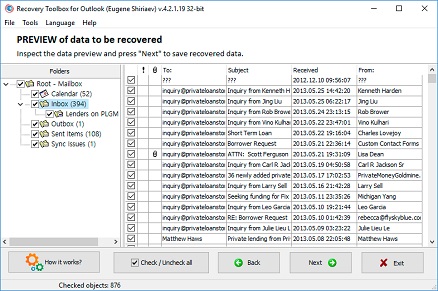
Solution: Recovery Toolbox for Outlook can scan the PST file and find recoverable contacts. On the preview page, select only the Contacts folder and deselect all other items and folders. Next, save only the contacts to a PST file. After saving the recovered PST, import it into Outlook 2016 and open the Contacts section in the new file to check the recovered entries.
Question:
Answer:
The calendar may be stored in the same PST file as your email. If the data file is corrupted, Outlook 2019 may stop displaying calendar entries or fail to open the calendar altogether.
Solution: Make a copy of the PST file, open it in Recovery Toolbox for Outlook, and check the recovered calendar items. Save the recovered data to a new PST file, import it into Outlook 2019, and select the recovered calendar from the calendar list.
Question:
Answer:
This happens when Outlook 2021 has lost the path to the PST file or the data file itself is corrupted. If you simply select the corrupted PST file again, the error may reappear.
Solution: First, recover the old PST file using Recovery Toolbox for Outlook. After the analysis, save the new PST file and specify it as the data file in Outlook 2021. This way, you won't reconnect the corrupted original file.
Question:
Answer:
After a Windows crash, power failure, or computer freeze, the PST file may have become corrupted. This happens especially often if Outlook 2024 was open at the time of the failure.
Solution: Do not open the corrupted PST file repeatedly. Make a copy of the file, run Recovery Toolbox for Outlook, select the PST copy, and save the recovered emails to a new file. Then connect the new PST file to Outlook 2024.
Question:
Answer:
Yes, if Outlook for Microsoft 365 uses a PST file as its primary or secondary data file, corruption can prevent it from sending, receiving, and saving emails.
Solution: Repair the PST file using Recovery Toolbox for Outlook and save the result to a new file. Then, in Outlook for Microsoft 365, connect the new PST file and set it as the default data file if that is the one you want to use for email.
Question:
Answer:
The Outlook 2016 update may have exposed an issue that was already present in the PST file. Sometimes, after an update, Outlook components change, and a corrupted file that previously opened partially stops opening entirely.
Solution: Close Outlook, make a copy of the PST file, and repair it using Recovery Toolbox for Outlook. After saving the new PST file, import it into Outlook 2016 and check if the error has disappeared.
Question:
Answer:
Large PST files are more prone to corruption due to system crashes, insufficient disk space, or prolonged use without archiving. Outlook 2019 may fail to open such a file, even if some of the emails inside are still accessible.
Solution: Free up enough disk space and run Recovery Toolbox for Outlook. Select the large PST file, wait for the analysis to complete, and save the data to several new PST files. Specify the maximum size of the new PST file in the program settings.
Question:
Answer:
Yes, if the attachments haven't been completely corrupted within the PST. Outlook 2021 may fail to open emails with attachments due to corruption of individual objects or the file's internal structure.
Solution: Recovery Toolbox for Outlook can extract emails along with any accessible attachments and save them to a new PST file. After importing the recovered file into Outlook 2021, open the desired emails and check the attachments.
Question:
Answer:
Archived PST files are often stored for long periods on external drives, USB flash drives, or network folders. As a result, they may become corrupted or inaccessible to Outlook 2024.
Solution: Copy the archived PST file to a local drive and open it in Recovery Toolbox for Outlook. After recovery, save the new PST file and connect it to Outlook 2024 as an additional data archive file.
Question:
Answer:
Yes, that's possible. Outlook 2016 may be able to read some of the old data but may not be able to save a new email to the Outbox, Sent Items, or the main data file.
Solution: Recover the PST file using Recovery Toolbox for Outlook. The program will create a new PST file containing the accessible emails and folders. Once the new file is connected, Outlook 2016 will be able to save new messages correctly again, provided the problem was indeed caused by a corrupted PST file.
Question:
Answer:
Yes, if the copy process was interrupted, the external drive had errors, or the file wasn't copied completely, the PST file may no longer open in Outlook 2021.
Solution: Try making a new copy from the external drive. If the error persists or you can't recopy the file, open the PST file in Recovery Toolbox for Outlook. After recovery, save the new PST file to your local drive and import it into Outlook 2021.
Question:
Answer:
An antivirus program may temporarily block the PST file, especially if it is checking attachments or scanning the email archive. Sometimes, after such interference, Outlook 2024 begins to recognize the file as inaccessible or corrupted.
Solution: Close Outlook, make sure the PST file is not being scanned by antivirus software, make a copy of the file, or restore it using Recovery Toolbox for Outlook. Connect the new PST file to Outlook 2024 from a local folder.
Question:
Answer:
The cause may be related to access permissions or the file's location. One instance of Outlook may be able to read the file partially, while another may display an error immediately.
Question:
Answer:
Yes, sometimes Outlook 2024 misinterprets a corrupted PST and displays a password prompt or an access error. Possible causes include a failing HDD or excessive use of an SSD. First, try copying the PST file to another drive. If the copy is successful, try opening the file in Outlook. If not, try recovering it using Recovery Toolbox for Outlook. If the file structure is corrupted, the program can help extract the available data to a new PST file.
Question:
Answer:
Yes, a corrupted email or attachment can cause the program to freeze, but the rest of the PST's items may still be recoverable.
Solution: Close Outlook for Microsoft 365 and open the PST file in Recovery Toolbox for Outlook. After scanning, select the desired email on the preview page and save it to a new PST file.
Question:
Answer:
Yes, PST files are not well-suited for active use from sync folders. OneDrive, Dropbox, or a similar service may lock the file just as Outlook 2016 attempts to write data to it.
Solution: Copy the PST file from the sync folder to a regular local folder. Then recover it using Recovery Toolbox for Outlook and connect the new PST to Outlook 2016 from the local location, not from OneDrive or Dropbox.
Question:
Answer:
When there is no free space on the drive, Outlook 2019 may write data to the PST file incorrectly. This can cause the file to become corrupted and fail to open.
Solution: First, free up space on the drive. Then make a copy of the PST file and open it in Recovery Toolbox for Outlook. Save the recovered data to a new PST file on a drive with sufficient free space.
Question:
Answer:
PST files, especially large ones of 50 GB or more, should not be used as working files on a network drive. In the event of network outages or access delays, Outlook 2016 may lose its connection to the file, increasing the risk of corruption.
Solution: Copy the PST file to a local drive. Open the copied PST file locally in Outlook 2016, and use the network copy only as an archive or backup.

Victor G. Bobrov, Senior Software Engineer.
MCSD, MCDBA
Microsoft Outlook expert in storing and displaying data from PST and OST files, specialist in converting and recovering data from PST/OST files with over 20 years of experience.
This page is maintained by Recovery Toolbox / File Master LLC and is connected to the author profile, company profile, legal pages and support resources so users and search engines can verify who is responsible for the PST Viewer content.

Victor Bobrov is listed as the author and reviewer of this Outlook Repair guide and is connected in structured data as the creator of the Recovery Toolbox for Outlook Repair Tool.
Recovery Toolbox is connected on this page to its company profile and legal entity:
Editorial note: This page was updated and reviewed on . The visible author, company and policy links match the JSON-LD entities used in the page source.
The Most Effective Way to Fix Error 0x8004010F in Offline Mode
Download for Windows Recovery Toolbox for OutlookPrivate offline recovery
Your data stays on your PC.
Preview repaired emails
Use the free PST Viewer to check emails before saving.
Works with Outlook 97-2024
And Outlook for Microsoft 365.
Engineered by data recovery expert Victor G. Bobrov
Customer's reviews
By clicking Download or Upload file, you agree to the Terms of Service and EULA.
Choose your recovery method
Private offline recovery
Your data stays on your PC.
Preview repaired emails
Use the free PST Viewer to check emails before saving.
Works with Outlook 97-2024
And Outlook for Microsoft 365.
Progress
Please wait while the file is repaired
Progress of file upload:
The program has no restrictions on the number and size of files