

5 out of 5 stars
Excellent utility.
Free OST Viewer Tool — Open and Read .OST Files Without Outlook
How to open OST file without Outlook
Recovery Toolbox for Outlook helps to view the contents both of damaged and normal Microsoft Outlook OST files
How to view the contents of an OST file
If you need to view the data stored in an OST file for free, you can do it in just a few simple steps. You don't need Outlook, Office365, Exchange Server, or Windows Domain Controller to view OST file for free. Recovery Toolbox for Outlook is a standalone ost reader. This is what you need:
- Download, install, and run Recovery Toolbox for Outlook
- Select OST file on the first page of Recovery Toolbox for Outlook
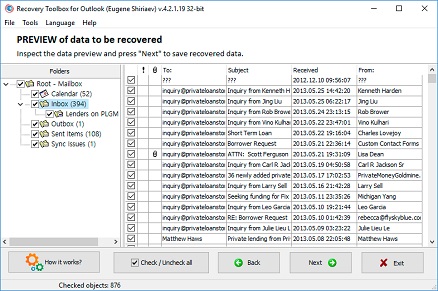
- Get access to folders, letters, contacts, and more on the preview page
To open and view an OST file without Outlook, install Recovery Toolbox for Outlook in free preview mode. Select your orphan .ost file to read emails, attachments, and contacts directly from the local cache without needing an Exchange Server connection.

This software for viewing OST files can read and display the contents of working and damaged OST files for free without using Outlook, Outlook 365, Outlook for MAC, Exchange Server, or Windows Domain Controller.
Notes: For customers of macOS, Android, iOS available the online version of Recovery Toolbox for Outlook here: https://osttopst.recoverytoolbox.com/online/
What you can view:
- Preview emails and attachments: browse messages and check the attachment data available in the file.
- View more than email: inspect contacts, calendar items, tasks, and notes stored in the local cache.
- Browse folders and sort messages: use fields such as sender, recipient, subject, and date to locate the items you need.
- Easy-to-use standalone interface: read mailbox contents without installing Microsoft Outlook.
- Stand-alone OST reader for large Unicode files: browse large local mailbox files as well as older ANSI files.
- Read locally cached data from Outlook for Microsoft 365: view available items without an active connection to the original account.
- Open orphaned OST files and preview readable items in corrupted files: check what is accessible before taking any further steps.
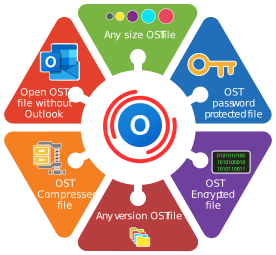
File extensions that can be viewed by the program: pst and ost. The online service and Recovery Toolbox for Outlook display emails, contacts, and other data from Microsoft Outlook 98 / 2000 / 2002 / 2003 / 2007 / 2010 / 2013 / 2016 / 2019 / 2021 / 2024, as well as Outlook for Microsoft 365.
Platform and free viewing:
- Compatible and tested with all versions of Microsoft Windows 2000, XP, 7, 10, 11.
- Doesn't work on macOS, Android, iOS
- When exporting data, only the last five objects from the folder are saved in DEMO mode.
Real customer reviews from TrustPilot
Feb 26, 2025
5 out of 5 stars
The software works great.
Jan 21, 2024
5 out of 5 stars
Saved the day and its free!
maa khan
Pakistan
Jun 3, 2022
5 out of 5 stars
thans your program very great full

5 out of 5 stars
Does a great job - no frills.
FAQ Wiki of OST Viewer:
How Can I View a Work OST File for Free After Leaving a Job?
Question:
I have Microsoft Outlook 2019 installed on my Windows 11 home laptop. Outlook used to connect to my employer's corporate Exchange Server, but my account was deactivated after I left the company. An OST file of about 8 GB is still on the drive and may contain work emails, contacts, appointments, and attachments. Outlook no longer opens it because I cannot authenticate with the company server. Can a free OST Viewer Tool let me browse the OST file at no cost and locate a few important emails?
Answer:
An OST file is a local offline cache of an Exchange mailbox. It is tied to a specific account, Outlook profile, and server, so after a corporate account is disabled, Outlook usually will not open the leftover file as a regular standalone data store.
First, contact your former employer and ask whether they can temporarily restore access or export any data you are authorized to keep to a PST file. If that is not possible, make a backup copy of the OST file and open the copy with Recovery Toolbox for Outlook.
On the first screen, select the OST file and start the scan. On the preview page, you can browse the folders, emails, contacts, appointments, notes, and other recovered items for free. You do not need to buy a license to inspect the data.
If you need to save all detected items to a new PST file and then open them in classic Microsoft Outlook, you will need a Recovery Toolbox for Outlook license. In demo mode, export is limited to a few items from each folder.
How Can I Open an OST File on a Computer Without Outlook Installed?
Question:
I found an OST file on an old Windows 10 PC. It was created by Microsoft Outlook 2016 for a Gmail account connected over IMAP. Microsoft Office has already been uninstalled, and I do not remember the password for the old Gmail account. I need to check emails and attachments that may still be sitting in the local cache. How to open an OST file without Outlook, because I do not want to install Microsoft Outlook to inspect one file? What is the easiest way to do it?
Answer:
Outlook is not designed to open a random standalone OST file directly. Even if you reinstall the app, you usually cannot simply add the old OST through the Open Outlook Data File menu because it is locked to the original mail profile and Gmail account.
As a free first step, try to recover access to the Google account. If you can sign in again, add the account back to Outlook and check whether the messages you need are still stored on the server.
If server access cannot be restored, install Recovery Toolbox for Outlook on a Windows computer. Outlook is not required to read or preview the OST file. Select the file on the first screen, let the scan finish, and go to the preview page. You can drill into folders, read detected emails, and check contacts, appointments, and attachments.
A license is required to transfer all data to a PST file for continued use in Outlook. A compatible classic version of Microsoft Outlook must be installed on the computer when the PST file is created.
Can I Read an OST File for Free After an Exchange Server Crash?
Question:
Our small company used Microsoft Outlook 2021 on Windows 11 with an on-premises Exchange Server. After the storage array failed, the Exchange database went offline, and there is no current server backup. My computer still has an OST file containing emails, contacts, calendar entries, and tasks. Outlook keeps trying to connect to the dead server and will not display the old data. Would a Free Outlook OST File Viewer help me check what is still cached in the OST file?
Answer:
Yes. When the Exchange Server or domain controller is unavailable, Outlook may lose access to the OST file even though a large part of the mailbox is still physically stored in the local cache.
Before doing anything else, copy the OST file to another drive. Do not experiment on the only copy. You can also ask the system administrator to check Exchange backups, Windows shadow copies, and other employees' computers for additional cached data.
Recovery Toolbox for Outlook can scan the saved OST file without connecting to the Exchange Server. After processing, the preview page lets you inspect folders, message subjects and dates, senders, recipients, contacts, calendar events, notes, and other detected data.
If you only need to confirm that a particular email survived, no license is required. A paid license is needed to export the full mailbox to a PST file that can be attached to Outlook 2021. The demo can save only a limited number of items from each folder.
Can I Compare an OST File with an Older PST File for Free?
Question:
I use Outlook for Microsoft 365 on Windows 11 with a corporate Exchange Online account. After changing jobs, I was left with an OST file from my old work profile and a PST file that I created several months earlier. I do not know which emails and contacts exist only in the OST file and which ones are already in the PST. I need a Free OST PST Viewer so I can inspect both files before paying for software. What is the best way to compare them?
Answer:
OST and PST files can contain different snapshots of the same mailbox data. A PST file is a standalone Outlook data file, while an OST file is a synchronised offline cache for a specific mail account. If the PST was created months ago, the OST may contain newer emails, appointments, and contacts.
First, try opening the PST file in classic Outlook through the Open Outlook Data File command. An old OST normally cannot be attached that way because Outlook expects access to the original Exchange Online account.
In Recovery Toolbox for Outlook, you can select the OST and PST files one at a time, scan them, and preview the detected folders and items for free. Compare message dates, subjects, senders, and folder trees to figure out which file contains the most current data.
Previewing does not require a purchase. If you need to extract everything from the OST file, create a new PST file, and attach it to Outlook for Microsoft 365, you will need a license. Keep the original files untouched before starting the export.
How Can I View an OST File from a Locked Yahoo Account for Free?
Question:
I have Outlook 2016 on a Windows 10 computer that used to pull Yahoo Mail over IMAP. Yahoo locked the account after suspicious activity, and password recovery through my backup phone number is not working. The Windows profile still contains an OST file with several years of email. Outlook keeps throwing a password prompt and will not show the old messages. I searched for an OST Viewer Free because I only need to read the emails. Is there a no-cost way to preview the file?
Answer:
With an IMAP account, Outlook stores a local synchronised copy of mailbox data in an OST file. However, that file stays tied to the original account. If Yahoo rejects the password, Outlook may fail to load the old profile and display its contents.
Start with Yahoo's official account recovery process. If access is restored, you can check the messages directly on the server or sync the mailbox with Outlook again.
If recovery is not possible, close Outlook and make a separate copy of the OST file. Open that copy in Recovery Toolbox for Outlook. The program will parse the file structure and display the detected data on the preview page. Emails, folders, contacts, and other available items can be viewed for free.
A paid license is required to save the entire mailbox to a PST file and attach it to Outlook 2016. Demo mode is useful for checking the scan results, but it is not intended for exporting the whole mailbox.
How Can I Read an OST File for Free After a Hotmail Account Is Hacked?
Question:
I used Outlook for Microsoft 365 on a Windows 11 laptop with a Hotmail address. Attackers changed the password and recovery email, so I can no longer sign in. The laptop still has an OST file that may contain emails, contacts, and purchase confirmations. Outlook demands that I authenticate again and will not open the old cached data. Can a Free OST Reader open this file without access to Hotmail?
Answer:
An OST file contains a local cache of data that was previously synchronised with the server. After account credentials or recovery settings are changed, Outlook cannot verify the user and may block access to the old cache.
First, submit a request to recover the compromised Hotmail account. That is the proper way to regain access to the mailbox and cloud data. At the same time, back up the local OST file so it is not overwritten by a new profile or deleted during an Outlook reinstall.
You can select the copied file in Recovery Toolbox for Outlook. After the scan, the program displays available folders, emails, contacts, appointments, tasks, and other items for free. This lets you find important information without connecting to Hotmail.
If you need to save the complete data set to a new PST file and add it to classic Outlook, you must purchase a license. The free mode is mainly for scanning and previewing, and its export capability is limited.
How Can I View an OST File When Outlook Cannot Find the Domain Controller?
Question:
Microsoft Outlook 2024 is installed on a Windows 11 workstation. The computer used to belong to a corporate domain and connect to an Exchange Server. After the office closed, both the server and domain controller were shut down, but the workstation still has an OST file. Outlook says the credentials are unavailable and refuses to load the mail profile. Which Outlook OST Viewer can show the old emails and calendar without a domain connection?
Answer:
A corporate OST file is tied not only to the file on disk, but also to the mail profile, Exchange Server, and the user's authentication data. If the domain controller and server are offline, Outlook cannot validate the account and may refuse to open the cache.
First, ask the administrator whether the server can be temporarily brought online or the mailbox can be restored from backup. If the infrastructure no longer exists, work only with a copy of the OST file.
In Recovery Toolbox for Outlook, select the OST file on the first screen. If the file structure is healthy, use conversion mode; if the file is damaged, the program may offer recovery mode. After the scan, all readable data appears on the preview page. You can inspect emails, folders, contacts, appointments, and notes for free.
To copy all detected items to a PST file and continue working with them in Outlook 2024, you will need a license. Keep the original OST file in a separate location as a backup.
How Can I View an OST File on an Old Laptop Without Microsoft Office?
Question:
I have an old Windows 10 laptop that previously ran Outlook 2019 with an Exchange Online account. The Microsoft 365 subscription was cancelled, Office was uninstalled, and the password for the former work account no longer works. A 12 GB OST file is still on the drive. I need to view the OST file without Outlook because I need to check the email history and find an attached contract. Can I do this for free?
Answer:
Yes. Microsoft Outlook does not have to be installed to preview an OST file. Outlook itself normally cannot open a detached OST as a regular data file, especially after the Exchange Online account has been deactivated.
First, copy the OST file to a healthy drive with enough free space. If you only need one document, also check the Downloads folder, temporary-file locations, and any directories where the attachment may have been saved earlier.
To analyse the OST file, install Recovery Toolbox for Outlook on a Windows computer, select the file on the first screen, and start processing. On the preview page, you can browse mail folders, read messages, and check for attachments. An active Microsoft 365 subscription or an Exchange Online connection is not required.
A paid Recovery Toolbox for Outlook license is needed when you want to export all data to PST or another supported format. To work with the resulting PST file later, you will need classic Outlook installed on Windows.
How Can I Read Emails from an OST File After a Mailbox Is Deleted?
Question:
I used Microsoft Outlook 2016 on Windows 10 to connect to Exchange Server 2016. The administrator accidentally deleted my mailbox and later created a new account with the same email address. The old Outlook profile no longer loads, but the original OST file is still available. How to read the OST file because I need to recover emails, old contacts, appointments, and reminders from the previous mailbox? What should I do?
Answer:
A new account with the same email address does not necessarily have the same internal identifier as the deleted mailbox. Outlook may therefore treat the old OST as belonging to another profile and refuse to open it.
First, ask the administrator to check recoverable or disconnected mailboxes, Exchange backups, and the deleted-item retention period. Server-side recovery usually preserves folder structure and item properties better than local extraction.
If server recovery is not possible, make a copy of the OST file and open it in Recovery Toolbox for Outlook. The program reads the OST directly and lists detected folders and items on the preview page. You can then check which emails, contacts, appointments, and other data are still recoverable.
To move everything into a separate PST file and open it in Outlook 2016, you will need a license. Demo mode lets you test the export with a limited number of items, but full OST extraction requires the registered version.
How Can I Open an OST File After a Gmail Account Is Blocked?
Question:
On my Windows 11 home computer, I used Outlook for Microsoft 365 with a work Google Workspace account connected over IMAP. The company blocked the account, so Outlook can no longer sync. I still have an OST file with project emails, contacts, and local folders. Can an OST File Reader show what is inside when I can no longer sign in to Google Workspace?
Answer:
With an IMAP connection, the OST file acts as a local cache of data downloaded from Gmail or Google Workspace. Once the account is blocked, Outlook cannot validate access and may stop displaying the old profile's contents.
If the data belongs to the organisation, first request an authorised export from the Google Workspace administrator. This matters because some of the correspondence may be company-owned information.
To inspect data that was cached locally, use Recovery Toolbox for Outlook. Close Outlook, copy the OST file, and select the copy on the first screen. After analysis, you can preview detected messages, folders, contacts, calendar items, and attachments.
If you only need to read a few emails, no purchase is required. A license is needed to save all data to a PST file and attach it to classic Outlook for Microsoft 365. Demo export is limited to a few items from each folder.
What Software Can Open a Damaged OST File After a Drive Failure?
Question:
Microsoft Outlook 2021 is installed on my Windows 11 computer and connects to Exchange Server 2019. After the SSD started failing, Outlook stopped loading the old profile, and the disk-checking utility reported bad sectors. I managed to copy the OST file to a new drive, but Outlook still will not open it. Which OST Viewer software can display emails and attachments from a partially corrupted file?
Answer:
In this case, the problem may involve not only lost access to Exchange, but also physical damage to individual blocks inside the OST file. Preserve the original copy first, and do not run recovery directly on the failing SSD.
If the mailbox still exists on the Exchange Server, the easiest fix is to create a new Outlook profile and let it sync the data again. However, local items that never made it to the server may exist only in the old OST file.
Recovery Toolbox for Outlook can analyse both healthy and damaged OST files. Select the file, use the recovery mode offered by the program, and wait while it builds the list of detected items. On the preview page, you can check readable emails, contacts, appointments, notes, and attachments for free.
Buy the software only after the preview confirms that the data you need is present. A license is required for a full export to PST. Heavily damaged or overwritten parts of the file may be only partially recoverable.
How Can I View an Old OST File Directly in Outlook 2024?
Question:
I installed Microsoft Outlook 2024 on a new Windows 11 computer and copied an OST file from my old PC. The file was created for an Outlook.com account that I can no longer access. Outlook lets me choose a PST file through the Open Outlook Data File menu, but it does not offer an option for OST files. How do I view an OST file in Outlook when all I have is this standalone OST file? How can I open it?
Answer:
Outlook does not provide a standard import feature for a detached OST file. An OST is created for a specific account and works as a synchronised cache, not as a portable archive. Simply copying the file to another computer does not restore the original profile or authentication.
First, try to recover access to Outlook.com and add the account to a new Outlook profile. If the messages are still on the server, Outlook will download them again.
If you cannot sign in, open the OST file in Recovery Toolbox for Outlook and check its contents on the preview page. Once the preview confirms the result, purchase a license and export all available items to a new PST file.
The resulting PST file can be attached to classic Outlook 2024 as a standalone data file. You do not need to import the original OST directly. Before conversion, make sure the computer has enough free disk space and a compatible version of classic Outlook installed.
How Can I Find Contacts and Appointments in an Old OST File for Free?
Question:
After leaving my job, I was left with a Windows 10 computer running Microsoft Outlook 2019 that used to connect to a corporate Exchange Server. The mail account has been deactivated, but the OST file should still contain client contacts, calendar appointments, and work notes that I have permission to keep. I do not need to export the emails. Can a Free OST File Viewer show only the contacts and calendar data?
Answer:
Yes. Contacts, appointments, tasks, and notes are stored inside an OST alongside emails and other items. Outlook may stop showing them after the account is disabled because it cannot verify the file against the original server profile.
First, confirm that the organisation has authorised you to use the data. Then make a copy of the OST file and open it in Recovery Toolbox for Outlook. After the scan, the program builds the folder tree. On the preview page, you can jump directly to Contacts, Calendar, Tasks, or Notes and inspect the detected records.
No license is needed for regular previewing. If you only need to copy a few phone numbers or appointment dates manually, you can stop at the preview stage.
If you need to save all contacts, events, and emails to a PST file or export them to supported individual formats, you will need a license. Free demo export is limited to a few items from each folder.
How Can I View Multiple OST Files from Different Accounts?
Question:
I found four OST files on a Windows 11 computer that were created by Outlook 2016 and Outlook 2021. One belonged to an Exchange Server account, another to Gmail, a third to Yahoo Mail, and I have no clue where the fourth came from. Some of the accounts have already been deleted. How can I view OST files to identify which file contains the emails and contacts I want without buying multiple licenses up front? How should I sort them out?
Answer:
Each Outlook profile and mail account can create its own OST file. The filename does not always reveal which server or email address it belonged to, and old files may remain on disk after a profile is deleted.
First, make copies of all OST files and note their sizes and last-modified dates. Then select each OST file in Recovery Toolbox for Outlook one at a time. After scanning, use the preview page to inspect folder trees, message dates, sender and recipient addresses, contacts, and calendar entries. Those clues usually make it easy to identify the owner and age of each file.
You do not need a separate license to analyse each OST. All files can be previewed for free in the same installed program.
A license is required only if you decide to fully export data from the selected OST to PST or another supported format. When combining data, it is safer to create a separate PST for each original account so folders and duplicates do not get mixed together.
How Can I Read an OST File and Move All Its Data into Outlook?
Question:
I use classic Outlook for Microsoft 365 on Windows 11. It previously connected to Exchange Online, but the old mailbox was deleted after the company moved to a different domain. I still have an OST file containing emails, contacts, calendar entries, tasks, and attachments. I need an Outlook OST Reader that will first let me check the data for free and then copy everything to PST for continued local use in Outlook. What is the correct workflow?
Answer:
The old OST file cannot be reliably attached to a new Outlook profile because it is tied to the deleted Exchange Online account. A new address or domain creates a different profile and, in most cases, a new OST file.
First, back up the original file. Then launch Recovery Toolbox for Outlook, select the OST file on the first screen, and run the analysis. On the preview page, check the folder tree, the number of detected messages, contacts, appointments, tasks, and any important attachments.
If the preview looks good, purchase a Recovery Toolbox for Outlook license. Select the required folders and export the complete data set to a new PST file. Demo mode saves only a limited number of items from each folder and is not suitable for a full mailbox migration.
After the PST file is created, open classic Outlook and add the PST through the Open Outlook Data File command. The data will appear in a separate folder tree, where it can be stored locally or copied to another authorised mail profile.

Victor G. Bobrov, Senior Software Engineer.
MCSD, MCDBA
Microsoft Outlook expert in storing and displaying data from PST and OST files, specialist in converting and recovering data from PST/OST files with over 20 years of experience.
Trust, author expertise and data-safety information
This page is maintained by Recovery Toolbox / File Master LLC and is connected to the author profile, company profile, legal pages and support resources so users and search engines can verify who is responsible for the PST Viewer content.
Expert author and reviewer

Victor G. Bobrov
Chief Software Engineer and File Recovery Expert
Chief Software Engineer and File Recovery Expert
Victor Bobrov is the author of this guide to opening and reading OST files without Microsoft Outlook.
Verified company profile
Recovery Toolbox is connected on this page to its company profile and legal entity:
- Recovery Toolbox company profile
- Legal name: File Master LLC
- Support: Recovery Toolbox support
Working with local OST files
- Use a copy of the file and keep the original unchanged.
- Open the copy in the Windows desktop application; this viewing workflow does not require uploading your mailbox file to an online service.
- Allow time for large files to finish processing before checking the preview.
- For questions about supported files or viewing, contact support.