

5 out of 5 stars
Tool is amazing loved to get my data recovered
Outlook PST Repair Tool
How to repair PST file in Outlook
Recovery Toolbox for Outlook helps to fix PST file of Outlook
How to fix a PST file
Recovery Toolbox for Outlook helps to fix corrupted PST files of any version of Microsoft Outlook with emails, appointments, attachments, contacts, tasks, notes, calendars, journals, and other.
Here are step-by-step instructions on how to fix PST files. This manual assists you in fixing Outlook data files and repairing all messages, contacts, appointments, tasks, notes, journals, calendars, etc.:
- Download Recovery Toolbox for Outlook here https://outlook.recoverytoolbox.com/download/RecoveryToolboxForOutlookInstall.exe
- Install PST Repair Tool in Windows
- Start the PST Fixer
- Select a PST file on the first page of the PST Fixer
- Select the "Recovery mode"
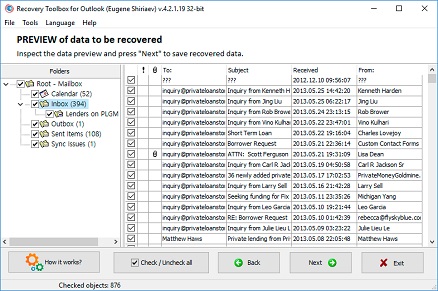
- View the content of the PST file
- Select a folder for saving converted data
- Select the "Save as PST file" mode
- Click "Save"


Follow these simple steps if the Outlook PST file is corrupted. Fixing the PST file will take considerable time and may require an additional computer. Simple steps that may help to fix a corrupt Microsoft Outlook PST files:
- Rebooting the computer;
- Reinstalling Microsoft Office;
- Reinstalling Microsoft Outlook;
- Installing the latest Windows updates;
- Checking your mail profile with special Outlook tools;
- Restoring Outlook data from the latest backup, if you have one.
Differences and advantages of Recovery Toolbox for Outlook from free tools and other paid tools:
- the original PST file is not modified;
- no need to make a backup copy of the original file;
- no recovered data is written to the original PST file;
- availability of online PST file repair service.
Recovery Toolbox for Outlook is a last chance after testing all the free apps. Even if free applications corrupted the original PST file, the Microsoft Outlook PST Fix Tool will recover data from the corrupted PST file. The Microsoft Outlook PST Fix Software is insurance for the Outlook Personal Store folder.


How to fix corrupted PST files in Microsoft Outlook
The Microsoft Outlook PST Fix Software can solve problems with corrupted PST files from Microsoft Outlook.
The PST Fix Tool can also solve other tasks and function issues.
Features of the PST File Fixer:
- Fix PST files of Microsoft Outlook 97-2003 (ANSI format)
- Fix PST files of Outlook for Microsoft 365
- Fix *.PST files from Microsoft Outlook 2007-2016 and above (UNICODE format)
- Fix 2Gb errors for PST files from Microsoft Outlook 97/98/2000/2003/XP
- Fix PST and OST files from all versions of Microsoft Outlook
- The Outlook .pst Fixer recovers attachments, embedded items, contacts, appointments, tasks, notes and other objects from Microsoft Outlook
- Fix password-protected/encrypted PST and OST files
- Reads and recovers encrypted PST or OST files
- OST to PST converter
- Free OST viewer
- Recovers Outlook emails
- How to Convert OST to PST
- Outlook Repair
- Fix Outlook PST file
- Convert PST to EML
- PST Viewer free
- Outlook data file cannot be accessed
- Outlook 2016 Repair
- Outlook 2019 Repair


How to fix a PST file from MS Outlook
The Outlook PST Fix Tool helps repair data from damaged Outlook files and repair other errors:
- 2Gb file size error
- The file Outlook.pst cannot be opened
- Scanpst.exe reports "Fatal Error 80040818" when trying to repair the PST file
- Scanpst.exe reports, "An unknown error prevented access to the file. Error 0x80070570: The file or directory is corrupted and unreadable."
- Scanpst not working PST repair
- Outlook PST file size error
- Inbox repair tool PST repair failed
- Outlook PST file corrupt
- 0x80070570
- Outlook Data File Cannot Be Accessed
The Microsoft Outlook PST Fix Software helps repair .pst file Outlook data. How do you fix PST files in Outlook? The Outlook PST repair tool uses the most advanced PST file-analysis methods to open Outlook data files with different degrees of damage inflicted by all types of accidents:
- Virus attacks or infection
- Incorrect work of Anti-virus tools
- Failure of Anti-Malware software
- Poor internet connection during the synchronization
- Incorrect synchronization with the mail server
- Incorrect synchronization with cloud data storage
- Power failures
- Network errors
- Hardware problems
- Software bags
- RAID or HDD failure
- Windows malfunction
- incorrect starting of the computer from the sleep state
- improper shutdown
- Incorrect work of Inbox Repair tool (ScanPST.exe)
- Hung-up of Inbox Repair tool (ScanPST.exe)
This PST File Fix Tool can recover all objects from damaged Exchange Server (OST) and Outlook (PST) storage files: email messages with attachments, contacts, notes, tasks and more. The Outlook PST fixer can also be used as a PST viewer.

Requirements:
- Windows 98/Me/2000/XP/Vista/7/8/10/11 or Windows Server 2003/2008/2012/2016 and above
- Microsoft Outlook 98, Microsoft Outlook 2000, Microsoft Outlook 2002, Microsoft Outlook 2003, Microsoft Outlook 2007, Microsoft Outlook 2010, Microsoft Outlook 2013, Microsoft Outlook 2016, Microsoft Outlook 2019, Microsoft Outlook 2021, Microsoft Outlook 2024 must be installed on the user's computer at the time of conversion (excluding Outlook for Office 365, Outlook for iOS and Outlook for MacOS).
Notes and restrictions:
- This product does not export contact groups;
- Online PST file recovery service solves the problem for customers with MAC computers, phones, iOS, Android and other non-Windows devices;
- Desktop version of Outlook must be installed on the computer to be able to save the recovered data to a new PST file;
- The demo version of the Outlook Recovery Tool saves up to 5 items per folder;
- The folder structure is completely saved to the PST file in the DEMO version of the Outlook PST Repair Tool;
- Recovery Toolbox for Outlook licenses start at $39 for a Personal License;
- The online PST Repair service costs $10 per 1 GB of source files.
Prevent problems with PST files
To prevent Outlook PST file errors and Microsoft Outlook crashes, you should and preferably:
- regularly back up your Microsoft Outlook data and settings using Outlook backup tools;
- back up Windows and all computer data regularly.
Real customer reviews from TrustPilot
FAQ Wiki:
How can I recover a PST file after Outlook freezes during archiving?
Question:
I have Microsoft Outlook 2021 running on Windows 11. I started archiving old email to a roughly 48 GB PST file, but the PC froze during the operation and had to be hard-rebooted. After the restart, Outlook would no longer mount the archive and reported that the data file was corrupt or had an invalid structure. The PST contains eight years of email, contacts, appointments, and attachments. The built-in ScanPST utility starts checking it but stalls at around 60%. Which Outlook PST repair tool can I use to pull out the data and create a working PST file?
Answer:
The damage most likely occurred because a write operation was interrupted: Outlook was updating the PST's internal tables and indexes when the PC froze. Individual data blocks may have been saved, while the structure that links them to folders and items was left incomplete.
First, close Outlook, make a copy of the damaged PST file, and run ScanPST against the copy. Check your free space, drive health, and Windows logs. If you have a recent PST backup, restoring it is the easiest and safest option.
If ScanPST hangs, launch Recovery Toolbox for Outlook and:
- Select the copy of the damaged PST file.
- Confirm that you want to start recovery.
- Wait for the scan to finish and review the folders and items it finds.
- Select the email, contacts, appointments, and other data you want to save.
- Choose a folder on a healthy drive.
- Select the option to save to a new PST file.
- Start the export.
After checking the new file, remove the damaged PST from File > Account Settings > Data Files, and then add the recovered PST. Keep the original in a separate location until you are sure all critical data has been recovered.
How can I recover a PST after a power outage?
Question:
I use Microsoft Outlook 2019 on Windows 10. The office lost power while Outlook was downloading a large batch of email. After I turned the PC back on, Outlook displayed Cannot open the Outlook data file, and the 19 GB PST would no longer mount in my profile. The file is on a local SSD, but its modified timestamp matches the time of the hard shutdown. My backup is two months old, so I do not want to lose recent messages. Can you explain how to repair a PST file in Outlook?
Answer:
The hard shutdown may have interrupted an update to the PST header, indexes, or allocation tables. The messages may still physically exist in the file even though Outlook can no longer parse its structure correctly.
The obvious first step is to copy the PST to another healthy drive, check the SSD, and run ScanPST on the copy. If the file still will not open after one or two passes, do not keep modifying your only original. If you have a backup, you can mount it and try to extract newer data separately from the damaged file.
In Recovery Toolbox for Outlook, select the damaged copy, start recovery, and inspect the results on the preview screen. Select the folders you need, specify a separate directory, choose PST as the output format, and save the data to a new file with a different name. Never overwrite the source PST.
Then close the recovery app, open Outlook's Data Files settings, remove the dead reference to the old PST, and add the new one. Compare its folder and message counts with the app's preview.
How can I retrieve email from a PST after a hard-drive failure?
Question:
I have Microsoft Outlook 2016 and Windows 10. My old hard drive started throwing errors, and Outlook began freezing whenever I opened Sent Items. I copied the 27 GB PST to a new SSD, but Outlook now refuses to open it and says it is not an Outlook data file. Part of the file could be read-only on the second attempt. I need an Outlook PST recovery tool that can bring back my email and contacts. What should I do, and can I work directly with this PST?
Answer:
Unreadable sectors may have caused the corruption. Some PST blocks may have been copied with errors or replaced with blank data, so the internal file structure no longer matches the expected format.
Do not run recovery on the failing drive. First obtain the most complete sector-by-sector copy possible, or image the entire drive. If the data is critical and the drive keeps disconnecting or making unusual noises, stop the DIY attempts and contact a data-recovery lab. Recovery Toolbox for Outlook recovers content from an existing, readable PST file; it cannot repair a physically failing drive.
Once you have a stable copy, select it in Recovery Toolbox for Outlook. Run the scan, review the available folders and messages, select the items you need, and save them to a new PST on a healthy drive. For a large file, 64-bit Windows and classic Outlook are recommended.
After export, mount the new PST through Outlook's Data Files settings. Keep the damaged copy separately. If some blocks were physically lost, certain messages or attachments may be recovered only partially.
How can I recover a PST damaged by antivirus software?
Question:
I use Microsoft Outlook 2024 on Windows 11. After an update, my antivirus quarantined the PST because it appeared to have been modified suspiciously. I restored the file from quarantine, but Outlook now throws an access error and then crashes. The PST shrank from 12.8 GB to 11.9 GB. It contains local folders, contacts, and my calendar. Can an Outlook PST file recovery tool help if the antivirus altered or truncated the file?
Answer:
The antivirus may have interrupted an Outlook write, locked part of the file, or restored an incomplete copy from quarantine. A size drop of almost one gigabyte suggests that some data may have been lost, so a full recovery cannot be guaranteed.
First, check whether the original version still exists in quarantine, Windows backup storage, or your company's backup system. Copy every PST version you find into a separate folder and compare their sizes. Do not add the damaged file back to an active Outlook profile before recovery is complete.
You normally do not need to turn off protection completely. Instead, add a temporary work folder to the exclusions list in accordance with company security policy. Select the most complete PST in Recovery Toolbox for Outlook, run the scan, and inspect the preview. If your messages and folders appear, select them and save them to a new PST.
Then remove the damaged entry from Outlook's Data Files list and mount the new PST. If the preview shows a message without its body or attachment, the corresponding blocks were probably deleted or overwritten by the antivirus.
How can I fix a PST after force-quitting Outlook?
Question:
My Windows 11 PC runs Outlook for Microsoft 365 in classic mode. Outlook stopped responding while moving several thousand messages between folders, so I killed the process in Task Manager. After that, the 34 GB PST stopped opening, and Outlook says the set of folders cannot be opened. Rebooting and creating a new profile did not help. How can I preserve the original folder tree, and how to fix PST file damage in this situation?
Answer:
During a bulk move, Outlook updates message records, indexes, and the folder hierarchy at the same time. Force-quitting the process may have left those operations unfinished, preventing Outlook from rebuilding the folder tree.
First, make sure all Outlook processes are closed and back up the PST. Try ScanPST on the copy. If the repaired file opens, immediately export the important data to a new PST because the structure repaired by the built-in utility may remain unstable.
If ScanPST does not help, open the PST copy in Recovery Toolbox for Outlook. Confirm recovery, wait for the preview to be built, and check the folders, especially those involved in the move. Select the data, choose a destination folder, and save the result to a new PST.
When finished, remove the damaged PST from your Outlook profile and add the recovered one. Because the app creates a fresh PST and transfers the items it finds, this is generally safer than repeatedly patching your only original.
How can I recover multiple PST files after a failed profile migration?
Question:
I moved a Microsoft Outlook 2019 profile from a Windows 10 PC to a new Windows 11 PC. The external flash drive disconnected during copying. Now two of the three PST files will not open: one is 8 GB, and the other is 23 GB. Outlook reports that they are corrupt, although File Explorer can see them. I need to know how to repair PST files without mixing data from different accounts and while keeping each archive's folders separate.
Answer:
The device disconnect may have left the copies incomplete. Blocks may be missing from the end of a PST, while tables and message pointers refer to data that is no longer there. Check the old PC first. If the originals still exist and are open, copying them again is the best fix.
Process each PST separately. Make working copies, give them clear names, and run ScanPST first. Do not merge damaged files or import them into a single live PST before checking them.
For each file separately:
- Select it in Recovery Toolbox for Outlook.
- Run the scan.
- Check the account name and folder structure.
- Select the recovered data.
- Save the result to its own new PST.
Name the results something like account-1-recovered.pst and account-2-recovered.pst. Then mount them in Outlook one at a time from the Data Files tab. This keeps messages from getting mixed together and lets you evaluate how completely each archive was recovered.
How can I recover a PST after a network-storage failure?
Question:
I use Outlook 2016 on Windows 10, and my active PST was mistakenly kept in a NAS network folder for several months. Outlook froze during a brief network drop and, after restarting, would no longer open the 41 GB file. The PST copies to a local SSD without errors, but Outlook says the data file cannot be opened. Which Outlook PST file repair tool fits this situation, and can it restore the subfolder structure?
Answer:
A PST is not designed for active use over an unstable network connection. If the connection drops during a write, Outlook may fail to finish updating its system tables. The file can still copy successfully even though its logical structure is damaged.
Move the PST to a local drive and work only on a copy. Check the NAS for backup versions. If an older, undamaged snapshot exists, keep it separately; you may need it to compare results or recover missing messages.
Select the local PST copy in Recovery Toolbox for Outlook and start recovery. On the preview screen, expand the folder tree and make sure the required subfolders were found. Then select the data you need, choose a local destination folder, and save everything to a new PST.
Mount the recovered PST through Outlook's Data Files settings. Going forward, keep the active PST on a local drive and store on the NAS only backups created after Outlook has been closed.
How can I recover an Outlook 365 PST after the disk fills up?
Question:
I use classic Outlook for Microsoft 365 on Windows 11. The system drive ran out of space while Outlook was downloading attachments and updating a local archive. After I cleared some space, Outlook would no longer open the 56 GB PST and threw an error at startup. ScanPST says the repair was not completed. What is the right way to repair a PST file in Outlook 365 data without losing email, contacts, or calendar items?
Answer:
When a drive runs out of space, Outlook cannot finish writing new blocks or updating the PST indexes. The repair process itself also needs extra room for temporary data and a backup copy.
Free up space on the system drive and prepare another drive with plenty of headroom. Copy the damaged PST to that larger drive first. If ScanPST has already modified the original, keep both the untouched and processed versions because their scan results may differ.
Run Recovery Toolbox for Outlook on a 64-bit system with classic Outlook installed. Select the PST, confirm recovery, and wait for the preview. Select the data you need, choose a folder on a drive with enough free space, and save it to a new PST.
After creating the output file, remove the old reference on the Data Files tab and add the new file. Do not place the new PST in a cloud-synced folder. For a very large archive, you can also split your working data across several PST files.
How can I recover a PST without ScanPST when the utility keeps hanging?
Question:
My PC runs 64-bit Microsoft Outlook 2021 on 64-bit Windows 11. A 67 GB PST was damaged after Outlook froze while compacting the archive. ScanPST runs for several hours and then stops responding at the same stage every time. Other free tools cannot finish the scan either. How can I use another method to repair the Outlook PST file without ScanPST and get the messages back with their original folders?
Answer:
Compaction rebuilds the PST and releases unused blocks. If it is interrupted, both the indexes and allocation tables may be damaged. The large file size also increases scan time and the memory and disk-space requirements.
Do not run ScanPST over and over on the original. Make a copy and verify that the drive has enough free space. For a file this large, use 64-bit Windows, Outlook, and recovery software.
Select the PST copy in Recovery Toolbox for Outlook and confirm recovery. Scanning a large file can take a while; the duration mainly depends on file condition and drive speed. When the preview appears, expand the folder tree, spot-check several messages and attachments, select the items you need, and choose to save them to a new PST.
Do not use the source PST as the output file. After export, replace it with the new PST in Outlook's Data Files settings. If blocks were overwritten during the failed compaction, some items may be recovered only partially.
Which Microsoft Outlook tool should I use after a Windows update damages a PST?
Question:
I have Outlook 2019 on Windows 10. After Windows installed updates, the PC rebooted automatically while Outlook was still open. The main 16 GB PST now fails to load, and Outlook offers to create a new data file. I need a Microsoft Outlook recovery tool, but I am not sure whether to try Microsoft's utility first or go straight to a third-party app. What is the safest order of operations
Answer:
Outlook was probably terminated while writing. The Windows update itself normally does not alter PST content, but the automatic restart may have interrupted an update to the file's internal tables.
Start with the built-in options:
- Close Outlook and save a copy of the PST.
- Check the drive for errors.
- Run Microsoft's Inbox Repair Tool, ScanPST, against a working copy.
- Look for a backup version of the file.
If ScanPST finds no data, exits with an error, or produces a PST that still will not open, analyse the original copy with Recovery Toolbox for Outlook. Select the PST, start recovery, inspect the items in the preview, select the folders you need, and save them to a new PST.
After checking the result, open Outlook's Account Settings, remove the reference to the damaged PST, and add the recovered file. Do not delete the original until you have compared folders, message dates, contacts, calendar items, and attachments.
How can I fix a PST after backup software crashes?
Question:
I use Outlook 2016 on Windows 11. My backup software started copying the live PST while Outlook was receiving mail. After the backup job failed, Outlook stopped opening the main file and reported a cyclic redundancy check error. The main PST is 29 GB, while the backup is only 21 GB. Can an Outlook PST fix tool repair the main file, and which copy should I scan?
Answer:
A cyclic redundancy check (CRC) error may indicate either logical PST corruption or a drive read problem. The incomplete 21 GB backup was probably cut short and may contain less data than the main file.
Check the drive's health first. If reads are unstable, create a disk image or a full copy on a healthy drive. Analyse the most complete PST version that can be read reliably. Do not repair the file directly on damaged media.
Open a copy of the main PST in Recovery Toolbox for Outlook and run the scan. You can also check the backup PST separately and compare the previews. An older copy sometimes retains items that are damaged in the newer PST. Save output from each source under a different name.
For the main file, select the folders found and create a new PST, then mount it in Outlook. In the future, back up PST files only after fully closing Outlook, or use software that creates a consistent snapshot of an open file.
How can I recover an Outlook data file after a failed partition shrink?
Question:
On a Windows 10 laptop with Microsoft Outlook 2019, I was shrinking the system partition to create a separate drive. The battery died during the operation. Windows boots, but the 14 GB PST no longer opens in Outlook. File Explorer can see it, although copying it sometimes triggers a read error. What is the correct order for rescuing the data, and how to repair Outlook data file damage after this kind of failure?
Answer:
Interrupting a partition operation may damage the file system or the physical placement of parts of the PST. You therefore need to stabilise and recover the storage media before repairing Outlook's logical data structure.
Do not defragment, compact, or repeatedly check your only copy. Image the drive or copy the PST to another device. If the PST cannot be copied in full, you will first need file-recovery software or a specialist to recover it from the damaged partition. Recovery Toolbox for Outlook requires an existing, readable file.
Once you have a stable PST copy, select it in Recovery Toolbox for Outlook, start the scan, and inspect the preview. Select the messages, contacts, calendar items, and tasks found, and save them to a new PST on another drive.
Then add the new PST to Outlook through Data Files. If some sectors were lost, certain messages, message bodies, or attachments may be missing, but intact items can still be transferred to the new file.
How can I fix a PST after cloud-folder synchronisation?
Question:
I use Microsoft Outlook 2024 in classic mode on Windows 11. My PST was stored in a cloud-synced folder. I opened Outlook on my main PC and, at the same time, turned on an old laptop that had a different version of the same file. After a sync conflict, Outlook stopped mounting the PST and created several files marked conflict. How can I tell which copy contains more messages, and how to fix Outlook PST file corruption caused by the conflict?
Answer:
Cloud sync may have combined incompatible block versions or replaced the current PST with an older copy. A PST changes as a single database, so ordinary file synchronisation cannot correctly merge edits made on two PCs.
Turn off syncing for that folder and copy all conflicting versions to a local drive. Compare sizes and dates, but do not pick a file based on size alone; a larger PST does not always contain more current items.
Open each copy in Recovery Toolbox for Outlook one at a time and compare the previews: latest message dates, folder counts, contacts, and calendars. Save the most complete version to a new PST. If another copy contains unique messages, export them separately so you can move them into the main recovered file later.
Mount the new PST in Outlook only after you finish the analysis. Keep active PST files locally and copy closed backup versions to the cloud.
How can I recover a badly damaged PST after a ransomware infection?
Question:
I have Windows 10 and Microsoft Outlook 2016. After a malware infection, some documents were encrypted. Antivirus software removed the threat, but the 22 GB PST no longer opens, and Outlook reports that the file has an invalid format. It still has the .pst extension, but Outlook continued running for a few minutes after the infection and then crashed. How can I determine how to repair a corrupt PST file Outlook data if I do not know whether the file was encrypted completely or only in part?
Answer:
You need to distinguish structural corruption from encryption. If ransomware transformed the entire PST, Outlook recovery software cannot decrypt it without the proper key. If the malware altered only part of the file, or Outlook crashed during the attack, some untouched blocks may still be accessible.
Isolate the computer, complete the security cleanup, and make copies of the PST and encrypted files. Check backups, shadow copies, and version history. Do not pay the ransom or run unknown decryptors without having them vetted by security specialists.
On a clean computer, select a PST copy in Recovery Toolbox for Outlook. If the app recognises the structure and displays messages in the preview, select the data found and save it to a new PST on a safe drive.
If the file is not recognised at all, you must first restore an unencrypted version from backup or obtain a suitable decryptor. Recovery Toolbox for Outlook is designed to recover PST structures and items, not bypass cryptographic encryption.
How can I recover multiple archive PST files after switching to the new Outlook?
Question:
My Windows 11 PC has both Outlook for Microsoft 365 and classic Outlook. After switching between the interfaces, I tried to mount three archive PSTs created in Outlook 2010 and Outlook 2016. Two opened, but the third, a 31 GB PST, caused Outlook to hang. After I force-quit classic Outlook, it stopped opening two of the archives and reported a folder-set error. How can I preserve the messages, contacts, appointments, and separate structure of each archive, and how do I repair Outlook PST files safely?
Answer:
The age of a PST is not normally the cause of corruption. Unicode PST files from Outlook 2003 and later support large amounts of data. More likely, one archive already had damaged indexes, and force-quitting Outlook while mounting it affected the second file or the profile.
Create a new test profile in classic Outlook and do not mount all the archives at once. Copy each PST. Mount the working files one at a time.
Process the damaged PST files separately in Recovery Toolbox for Outlook as well:
- Select the first PST.
- Start recovery and check the preview.
- Save the data found to a new PST.
- Repeat the process for the second PST.
- Do not merge the results until you have checked them.
Mount the recovered files in the test profile and compare their folders, contacts, and calendars. After verification, remove the damaged references from the main profile and add the new PSTs. This preserves each archive's independent structure and makes missing data easier to spot.

Victor G. Bobrov, Senior Software Engineer.
MCSD, MCDBA
Microsoft Outlook expert in storing and displaying data from PST and OST files, specialist in converting and recovering data from PST/OST files with over 20 years of experience.
Trust, author expertise and data-safety information
This page is maintained by Recovery Toolbox / File Master LLC and is connected to the author profile, company profile, legal pages and support resources so users and search engines can verify who is responsible for the PST Viewer content.
Expert author and reviewer

Victor G. Bobrov
Chief Software Engineer and File Recovery Expert
Chief Software Engineer and File Recovery Expert
Victor Bobrov is listed as the author and reviewer of this Outlook Repair guide and is connected in structured data as the creator of the Recovery Toolbox for Outlook Repair Tool.
Verified company profile
Recovery Toolbox is connected on this page to its company profile and legal entity:
- Recovery Toolbox company profile
- Legal name: File Master LLC
- Support: Recovery Toolbox support
Safe handling of PST files
- For confidential mail archives, use the offline desktop Outlook Repair Tool so files stay on your computer.
- Before opening a damaged PST file, work with a copy and keep the original file unchanged.
- The Online Outlook Repair Service is provided for convenience when installation is not possible.
- Links to EULA, privacy policy and support are kept visible for transparency.