

MIR
Norway
Dec 23, 2025
5 out of 5 stars
works good.
Recovery Toolbox for Outlook helps to fix e-mails, appointments, attachments, contacts, tasks, notes, calendars, journals and other from corrupted PST files of Outlook
Recovery Toolbox for Outlook is a specialized software application tool for Windows PCs and laptops—paired with a dedicated online service—engineered for an online fix of your damaged Microsoft Outlook database and corrupted .PST files. If you are searching for how to fix Outlook PST file errors, how to fix PST file corruption, or how to fix Outlook PST file not opening, our Outlook PST fix tool delivers a complete Outlook PST fix in the most complex and severe cases where standard utilities (Scanpst.exe) and other recovery services fail. Use this PST fix tool to fix PST file structures, fix Outlook PST, fix PST file Outlook, fix Outlook file containers, and fix PST files of any size, resolving every Outlook PST corrupted how to fix issue with maximum data extraction.
Step-by-step instructions on how to fix a corrupt Microsoft Outlook PST data file with assistance for messages, contacts, appointments, tasks, notes, journals, calendars and so on.
These instructions help fix Outlook files, any version and size, in just a few clicks:
Recovery Toolbox for Outlook recovers 32-bit ANSI and 64-bit Unicode PST and OST files through a low-level raw scan of the damaged container, bypassing corrupted HEADER and ROOT structures to locate Node Database (NDB) data blocks, Node BTree (NBT), and Block BTree (BBT) pages. Detected pages and blocks are parsed and validated against PAGETRAILER and BLOCKTRAILER signatures and CRC-32 (dwCRC) checksums. Payloads obfuscated via NDB_CRYPT_PERMUTE or NDB_CRYPT_CYCLIC algorithms—along with LZ77-compressed OST streams—are decoded immediately, while filtering eliminates unreferenced, invalid, and obsolete blocks based on BID reference counts.
Reconstruction strictly follows the MS-PST container architecture:
All nodes undergo strict referential integrity checks across nidParent and PR_PARENT_ENTRYID pointers. Orphaned objects whose parent-child relationships cannot be resolved are salvaged as standalone items inside dedicated recovery folders within the new PST file. Finally, all validated LTP structures, Messaging-layer objects, compressed RTF bodies (PR_RTF_COMPRESSED), and named properties from the Name-to-ID Map are written to a clean Unicode PST file via Extended MAPI.

Features of Microsoft Outlook fix tool:


The Outlook repair tool can solve the problem of corrupted Outlook databases and repair errors in MS Outlook PST files:
Requirements:
Notes:This product does not export contact groups.

tried all I could to restore my disk evry way recommended, but but my pc would not set -up program. This software is awesome. Thank you very much.
Question:
I use classic Outlook for Microsoft 365 on Windows 11 with an Exchange Online mailbox. My laptop battery died during synchronization and the computer shut down. After rebooting, Outlook says the set of folders cannot be opened. The messages are visible on the server in Outlook on the web, but the damaged OST still contains unsynced drafts, local contact edits, and several messages in the Outbox. How can I repair corrupted ost file data without wiping those local-only items, and then bring the recovered messages and contacts back into Outlook?
Answer:
To repair corrupted ost file data safely, treat the OST as more than a disposable cache. The damage was probably caused by an interrupted write: Outlook was updating internal tables and indexes when the power dropped. The standard fix for an Exchange Online account is to close Outlook, rename the damaged OST, and let Outlook build a fresh file from the server copy. That works only when every required item has already synced. Unsynced drafts and local edits will not appear in the new OST, so this job requires extracting local data before rebuilding the cache.
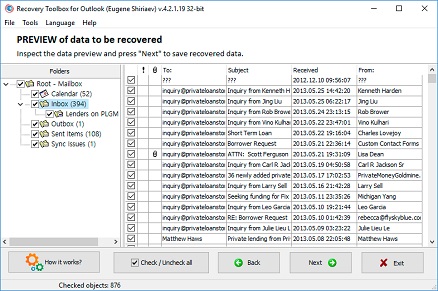
First, make a copy of the original OST and do not run repeated repair attempts against it. In Recovery Toolbox for Outlook, select the damaged OST on the first screen, confirm recovery, and wait for the scan to finish. On the preview screen, find and select the messages, contacts, and drafts you need. Choose a folder for the new file, select the option to save to a PST file, and start the export. Then let Outlook create a new OST through a normal Exchange sync. Add the recovered PST in Outlook under Data Files, and copy the recovered items from the PST into the new OST-backed mailbox folders.
Question:
I use Outlook 2021 on Windows 10 and keep old business correspondence in an 18 GB archive PST file. While I was moving the archive from an external USB drive to an internal SSD, the cable was accidentally unplugged and the copy operation failed. Windows can still see the source PST, but Outlook says it is not an Outlook data file and shows no messages or contacts. Since this is the only usable archive, can you explain how to repair PST file in outlook without making the damage worse?
Answer:
Here is how to repair PST file in outlook after an interrupted USB transfer: first determine whether the source file itself is damaged or only the new copy is incomplete. The folder, message, attachment, and contact blocks may still exist even if the service table linking them was corrupted.
First compare the sizes of the source and copied versions, check the USB drive's health, and create a byte-for-byte copy of the most complete file on a healthy local drive. Do not open the archive directly from the USB drive, and do not overwrite the original.
The basic option is to close Outlook, back up the PST, and run the built-in SCANPST.EXE utility against a copy. If it completes and Outlook opens the repaired file, move the data into a new PST. SCANPST may struggle with large PST files, however, especially an 18 GB archive.
For a more reliable recovery, open a copy of the PST in Recovery Toolbox for Outlook. Select the PST, confirm recovery, inspect the recovered folders and items in the preview, select the data you need, choose an output folder, select PST as the save format, and start saving. Afterward, disconnect the damaged archive under Data Files and add the newly created PST. Keep the original until you have fully verified the result.
Question:
I have Outlook 2019 on Windows 11. I started AutoArchive for several years of mail, and the PC froze and had to be force-restarted. The archive PST grew to about 27 GB. The next time Outlook started, it displayed: "Cannot start Microsoft Outlook. Cannot open the Outlook window. The set of folders cannot be opened." Outlook launches when that file is disconnected, so the archive is clearly the problem. How do I fix PST file outlook errors caused by the interrupted AutoArchive job while preserving the project folder structure, messages, calendar, and contacts?
Answer:
To fix PST file outlook errors caused by the failed AutoArchive run, first preserve the damaged file and work only on a copy. The forced restart most likely caught Outlook while it was moving items into the PST, leaving the header, folder table, or message pointers out of sync. Rebuilding the Outlook profile may clear configuration errors, but it will not repair the contents of the damaged PST.
First, close Outlook, copy the PST to a separate folder, and make sure the drive has plenty of free space. An obvious first step is to run SCANPST.EXE against the copy; it may be enough for minor logical corruption. If the file opens after repair, immediately create a new PST and copy the folders into it instead of continuing to use the old archive. SCANPST can behave poorly with large files, especially after heavy archiving or PST conversion jobs.
If SCANPST hangs, crashes, or drops part of the folder structure, select the original PST copy on the first screen of Recovery Toolbox for Outlook, confirm recovery mode, and review the messages, contacts, appointments, and folders it finds. Select the required items, choose an output folder, select saving to a new PST, and start recovery. Then remove the damaged PST from the Outlook profile under Data Files and add the new PST. Keep the original until you have compared folder counts and checked critical messages.
Question:
I use Outlook 2016 on Windows 10. By mistake, a PST containing my personal archives sat in a OneDrive folder for several months. While Outlook was using the file, OneDrive began syncing the 12 GB PST and created conflicting copies. The archive then stopped opening, and Outlook reported data-file errors. One copy has newer mail, while another contains some older contacts. Can you explain how to fix outlook PST file conflicts and merge the recovered data without losing anything?
Answer:
This is how to fix outlook PST file conflicts safely: stop synchronization, close Outlook, and move every PST version out of OneDrive into a regular local folder. Outlook constantly modifies a PST while it is open, so cloud sync can capture different block states and create conflicting versions whose internal tables no longer match. Do not merge the files at the Windows file level, and do not let OneDrive replace one copy with another.
First, check OneDrive version history, save the most complete intact version separately, and try SCANPST.EXE against a copy. If one version opens, create a new PST in Outlook and copy its data into the new file. You can then extract missing items from the second version.
For a complex case, analyze each copy separately in Recovery Toolbox for Outlook. In each run, select one PST, confirm recovery, select unique messages and contacts in the preview, choose a separate output folder, select saving to a PST file, and save the result. Attach both new PST files under Data Files, compare their folders, and move the required items into one clean final PST. Keep the damaged versions as backups until the comparison is complete.
Question:
I use Outlook 2024 on Windows 11. During an overnight backup, the backup app tried to copy an open PST while Outlook was downloading mail and writing attachments. In the morning, Outlook got stuck in a password-prompt loop and then reported that the PST was damaged and could not be opened. The file is a medium-sized 9 GB archive containing local POP3 messages and contacts that are not on the mail server. This PST is my only local copy. Can you explain how to repair outlook PST file damage while preserving the correspondence?
Answer:
Here is how to repair outlook PST file damage in this POP3 setup: first protect the only copy, because creating a new profile will not restore messages that are no longer on the server. The damage may have resulted from Outlook writing to the file while the backup app was reading or locking it. Close Outlook and the backup app, make two copies of the PST on another physical drive, and check the backup system for an earlier intact version.
The most straightforward option is to restore the latest known-good backup or run SCANPST.EXE against a working copy. If the file opens, immediately export its contents to a new PST and configure the backup job to run only after Outlook has closed.
If the built-in repair does not help, select the damaged PST copy in Recovery Toolbox for Outlook, confirm recovery, and wait for the folder tree to be rebuilt. In the preview, check messages with attachments, contacts, and calendar items. Select the data to save, usually everything; choose a folder for the recovered PST; select PST as the save format; and start saving. Once the result is created, disconnect the old file under Data Files, attach the new PST, and make it the primary working store only after you have verified it.
Question:
In classic Outlook for Microsoft 365 on Windows 11, I imported several old archives into one PST. It grew to about 48 GB, Outlook began freezing for long stretches, and the app crashed during the next import. The file is still on disk, but Outlook says it cannot be accessed when I try to attach it. SCANPST runs for hours and then stops responding. Can you explain how to repair PST in outlook without ending up with another unstable archive?
Answer:
This is how to repair PST in outlook when the archive is close to its size limit: plan for extra disk space, memory, and time to rebuild the indexes. A crash during import may leave allocation tables and item pointers incomplete. Work only on a copy, preferably with 64-bit Windows and 64-bit Outlook, and keep plenty of free space on a fast local drive.
The obvious option is to restore the archive from a backup made before the import or let SCANPST.EXE finish processing a copy after ruling out low disk space and drive errors. SCANPST is unlikely to handle such a large file well because it uses the same PST engine as Outlook. Microsoft Outlook's default PST size limit is 50 GB, and both Outlook and SCANPST can become highly unstable as the file approaches that limit.
For files around 50 GB or larger, use Recovery Toolbox for Outlook. Select a copy of the large PST on the first screen, confirm recovery, and wait for the full scan. In the preview, select data by folder, choose an output directory on a drive with enough free space, select PST as the save format, and start saving. Attach the new PST in Outlook under Data Files. For ongoing use, split the archive by year or project across several PST files to reduce load and limit the impact of future failures.
Question:
I use Outlook 2021 on Windows 10. After my SSD began reporting errors, CHKDSK repaired the file system, but my 21 GB PST became extremely slow to read. Outlook hangs at "Loading Profile" and sometimes reports a read error. The archive contains seven years of client email, local contacts, and calendar data. My last backup is three months old. What is the safest outlook PST recovery approach when bad sectors may be involved?
Answer:
This outlook PST recovery job involves two separate problems: physical SSD errors and logical damage inside the PST. Repeatedly reading the source drive can make the situation worse. Start by creating the most complete possible copy or disk image on a healthy drive instead of repairing the original. If the SSD continues to report errors, contact a data-recovery specialist first; PST repair software cannot recover bytes that the drive cannot read at all.
The obvious approach is to use the latest intact backup and separately try to extract only newer items from the current file. Once you have a stable copy, you can run SCANPST.EXE, although it uses Outlook's PST engine and may have little chance of repairing the file. If SCANPST never finishes or the result is incomplete, select the readable PST copy in Recovery Toolbox for Outlook. Confirm recovery, review the folders and messages it finds, select everything or only items newer than the backup, choose a folder on a healthy drive for the recovered PST, select saving as a new PST, and start saving. Attach the result to Outlook under Data Files and compare it with the backup. Do not delete either source until verification is complete.
Question:
I have Outlook 2019 on Windows 10 connected to an on-premises Exchange Server in Cached Exchange Mode. The administrator restarted the server while my PC was syncing a large mailbox, and Windows then froze as well. After rebooting, Outlook reports a synchronization error and will not open the OST. Most mail is on the server, but the local file may contain unsynced messages, notes, and contact edits. Can you explain how to repair outlook ost file damage without risking those local items?
Answer:
Here is how to repair outlook ost file damage without risking local-only items: first determine whether everything important has reached the server. An OST is a local cache of a server mailbox, and two back-to-back interruptions may have corrupted both the sync state and an in-progress write. The usual fix is to close Outlook, rename or delete the OST, and let Exchange build it again. That is the fastest path only when the administrator confirms that all required data is already on the server.
If the old OST may contain unique local items, save a copy first. You can then rebuild the working OST to restore access to server mail and process the copy separately in Recovery Toolbox for Outlook:
This workflow rebuilds the working cache while extracting local data from the old OST separately and copying it into the folders backed by the new OST.
Question:
I am moving archives from Outlook 2016 on an old computer to a new Windows 11 PC running Outlook 2024. Five PST files were copied through an unstable network share. Two open normally, but three show different errors such as "The data file cannot be opened" or display an empty folder tree. The problem files are 4, 11, and 23 GB. How can I repair PST files one by one while keeping each project's folder structure separate and avoiding merged duplicate folders?
Answer:
To repair PST files safely, do not combine the source archives or run bulk operations against the only copies. Some network copies were probably incomplete or damaged by dropped connections. Compare file sizes and checksums with the files on the old computer, copy them again over a stable connection, and work only with local copies on the new PC.
The obvious option is to check each PST in SCANPST.EXE one at a time, keeping a separate log and backup copy for every file. The odds may be low because the PSTs are large and SCANPST uses the same engine as Microsoft Outlook. If an archive opens correctly afterward, move its data into a new clean PST.
For any files SCANPST does not fix, run Recovery Toolbox for Outlook separately:
Give each result a clear name based on the project and date range. Attach the new PST files in Outlook 2024 under Data Files and verify each archive separately. Merge files only after checking messages, contacts, calendars, and attachments.
Question:
I use classic Outlook for Microsoft 365 on Windows 11. During a major Windows update, the PC restarted automatically while Outlook was still closing a PST containing a local archive. After the update, File Explorer shows the 16 GB file, but Outlook reports a CRC error and will not open its folders. The archive includes messages and contacts that were deleted from the server under retention rules. Is outlook PST file recovery possible if the file still exists but its structure is no longer readable?
Answer:
In this case, outlook PST file recovery may still be possible because the file can retain some or all of its data even when its service blocks are damaged. A restart while Outlook was closing may have interrupted writes to the header, indexes, or folder tables. First rule out an ongoing hardware problem: check the drive's health, copy the PST to a safe location, and never work on the only original.
The obvious option is to restore a previous version from a backup or Windows File History. SCANPST.EXE may be ineffective because the file is large and the utility uses the same PST engine as Outlook for Microsoft 365. If the CRC error occurs at the read level, create the most complete readable copy possible before attempting logical repair.
If the copy is readable but Outlook will not open it, load the PST in Recovery Toolbox for Outlook, confirm recovery, and review the recovered data on the preview screen. Select the messages, contacts, and calendar items to save. Choose a folder on a healthy drive, select saving to a new PST, and start recovery and saving. After verification, remove the damaged file's old attachment under Data Files and add the recovered PST there.
Question:
I have 64-bit Outlook 2024 on Windows 11. I started compacting a roughly 65 GB PST archive after deleting a large batch of attachments, but the process froze and Task Manager terminated Outlook. Outlook no longer attaches the file, and SCANPST stays at the same percentage for hours without producing a usable result. Which outlook PST fix tool can safely process a very large archive and recover messages, contacts, appointments, and the original folder structure?
Answer:
An outlook PST fix tool should be run only against a copy in this situation. Compaction physically rebuilds a PST, so forcing the process to stop may interrupt block migration and leave the old and new tables inconsistent. The large file size also increases scan time, memory requirements, and temporary disk usage. The destination drive needs plenty of room for the source copy, temporary data, and the new PST files.
The obvious route is to restore a backup made before compaction.
SCANPST.EXE clearly is not handling a file of this size.
For very large PST files, run Recovery Toolbox for Outlook on a 64-bit system with 64-bit Outlook. It is best to split the recovered data into multiple PST files and set the maximum PST size to 5-10 GB, which is a practical range for Outlook 2024. To recover and split the large PST:
For ongoing use, configure regular PST backups.
Question:
I use Outlook 2021 on Windows 10. My antivirus started a full scan while Outlook was moving thousands of messages between folders in PST Data Files. Outlook stopped responding, so the process was terminated manually. After restart, several folders were missing and Lost and Found items appeared without the original structure. The file now opens only sometimes. Which outlook PST repair tool can recover not just individual messages but also, where possible, the original folder hierarchy and contacts?
Answer:
An outlook PST repair tool may be able to rebuild links that were left incomplete when the antivirus scan and forced Outlook shutdown interrupted updates to the PST's internal tables. The messages themselves may still be in the file, but incomplete folder and item pointers can push some data into special recovery folders. Stop moving messages in the unstable file because every write makes it harder to compare the file with its original state.
First, close Outlook, make a copy of the PST, and temporarily exclude Outlook's working folder from the conflicting antivirus job if your organization's security policy allows it. SCANPST.EXE may not handle a complex case well, but you can try it against the copy and then inspect the Lost and Found folder. If the result opens, create a new PST and move the intact data into it.
If the structure is still incomplete, open the original PST copy in Recovery Toolbox for Outlook, confirm recovery, and inspect the folder tree in the preview. Select the messages, contacts, and appointments you need, choose an output folder for the recovered PST, select saving to a PST file, and start saving. Attach the result under Data Files and compare it with the SCANPST-repaired version to determine which one contains the most complete data set.
Question:
I use Outlook 2019 on Windows 11 and attached an old ANSI PST created years ago in Outlook 2002. After I added new mail, the file approached 2 GB. Outlook began reporting write errors and stopped opening the file after a crash. It contains old messages, contacts, and notes that exist nowhere else. Which outlook PST file repair tool can recover this legacy PST and move the data into a modern Unicode PST with minimal risk?
Answer:
An outlook PST file repair tool should extract the data into a new PST instead of trying to keep the old ANSI PST in service. ANSI PST files have much stricter size limits than modern Unicode files. As the archive approaches the 2 GB limit, Outlook may stop adding data, and a crash under those conditions can corrupt the file's tables.
Make several copies of the source file and do not truncate it manually. The obvious option is the built-in SCANPST.EXE utility, but it uses the same PST mechanism as Outlook 2002, so the odds of opening the old file may be very low.
A better approach is to open the old PST in Recovery Toolbox for Outlook and confirm recovery. On the preview screen, check the old folders, contacts, and notes; select the required items; choose an output directory; select saving to a new PST; and start the process. Then attach the new Unicode PST under Data Files and verify dates, attachments, and folder structure. Keep the old file only as a read-only archive source. Recover the ANSI PST on a computer with a newer version of Microsoft Outlook installed; any version from Outlook 2007 through Outlook for Microsoft 365 is suitable.
Question:
In Outlook for Microsoft 365 on Windows 11, I opened a working PST directly from a network NAS for several months. While I was sending a large message, the Wi-Fi connection dropped, Outlook froze, and the app reported that the data file was damaged after the connection returned. The 14 GB PST sometimes opens as empty even though its size on the NAS has not changed. Can outlook repair PST file damage caused by a dropped NAS connection, and how do I safely recover the messages and contacts?
Answer:
Do not let outlook repair PST file damage while the source is still open over Wi-Fi. A PST expects reliable, sequential disk access, and the dropped connection may have updated one part of the structure without writing the related blocks to the NAS. Close Outlook, take a snapshot or backup of the file on the NAS, copy it to a healthy local SSD, and perform every check against the local duplicate.
Because the PST is 14 GB, SCANPST.EXE may not produce a usable result.
Download and install Recovery Toolbox for Outlook. Open the local PST copy in Recovery Toolbox for Outlook, confirm recovery, and wait for analysis to finish. In the preview, verify that messages, contacts, calendar items, and attachments are visible. Select the required data, choose a local output folder, select saving to PST, and start saving. Then attach the new PST in Outlook under Data Files. Keep the working PST only on a local drive, and copy backup versions to the NAS only after Outlook is closed.
Question:
I use Outlook 2016 on Windows 10 with a POP3 account. During a thunderstorm, the power failed, the UPS did not kick in, and the PC shut down while receiving mail. After rebooting, Outlook says the PST is damaged and asks me to check it. The profile opens without that PST, but years of messages, contacts, tasks, and calendar data are missing. The file is 7 GB, and I do not have a current backup. The error message says outlook PST file is corrupted. How can I get the data back and make the profile usable again?
Answer:
When the message outlook PST file is corrupted appears after a hard shutdown, it usually points to a logically inconsistent structure rather than the loss of every item. The sudden power failure may have interrupted writes to new messages and the PST's internal tables. Do not launch Outlook with the damaged file. Copy the PST to a healthy drive and preserve the original unchanged.
The obvious first step is to run SCANPST.EXE against a copy and allow it to create a BAK backup. If the PST opens afterward, immediately create a new data file and move the messages, contacts, tasks, and calendar into it.
If SCANPST fails, recovers only some folders, or Outlook still will not open the file, select the source copy in Recovery Toolbox for Outlook. Confirm recovery, inspect the content found on the preview screen, select the required data, choose a folder for the new file, select saving to a PST file, and start saving. Then remove the damaged PST from the profile under Data Files, add the recovered PST, and check the critical folders before resuming normal work.

Victor G. Bobrov, Chief Software Engineer and File Recovery Expert.
MCSD, MCDBA
Microsoft Outlook expert in storing and displaying data from PST and OST files, specialist in converting and recovering data from PST/OST files with over 20 years of experience.
Victor Bobrov is a senior data recovery specialist with 15+ years of experience in Microsoft Exchange Architecture and PST structure forensics.
Victor Bobrov is listed as the author and reviewer of this Outlook Repair guide and is connected in structured data as the creator of the Recovery Toolbox for Outlook Repair Tool.
Recovery Toolbox / File Master LLC maintains this page. The links below provide company details, legal information and support resources.
Recovery Toolbox is connected on this page to its company profile and legal entity:
The most reliable way to fix Outlook data offline
Download for Windows Recovery Toolbox for OutlookPrivate offline recovery
Your data stays on your PC.
Preview repaired emails
Use the free PST Viewer to check emails before saving.
Works with Outlook 97-2024
And Outlook for Microsoft 365.
Engineered by data recovery expert Victor G. Bobrov
Customer's reviews
By clicking Download or Upload file, you agree to the Terms of Service and EULA.
Choose your fix method
Private offline fix
Your data stays on your PC.
Preview fixed emails
Use the free PST Viewer to check emails before saving.
Works with Outlook 97-2024
And Outlook for Microsoft 365.
Progress
Please wait while the file is repaired
Progress of file upload:
The program has no restrictions on the number and size of files