

Ian H
India
Aug 11, 2025
5 out of 5 stars
Excellent piece of software, worked like a charm.
Recovery Toolbox for Outlook helps convert e-mails from Outlook PST file to EML files
A step-by-step instruction for the conversion of Microsoft Outlook PST files to files with a .eml extension. This manual helps to export all messages from PST files to EML files:

Recovery Toolbox for Outlook is the ability to convert *.pst files to a number of *.eml files. Recovery Toolbox for Outlook can export all messages stored in a Microsoft Outlook *.pst file of any version into separate *.eml files (one message - one file).
In order to export PST to EML, you need to do the following:
Features:
Requirements:
Notes:
- Recovery Toolbox for Outlook do not support a recovering of contact groups yet.
- .eml files are a common standard for storing and sending RFS 822 messages.
- one .eml file cannot contain more than 1 email message.

Semplice da usare ed efficace.
Question:
I used Microsoft Outlook 2019 on a Windows 11 PC for years and saved my old business correspondence in a separate PST file that is about 12 GB. Our company is now switching to Mozilla Thunderbird for Windows, but Thunderbird cannot open PST files directly. I need to move several thousand messages from the Inbox, Sent Items, Clients, and Projects folders, with every message stored separately together with its subject, sender, recipients, date, body, and attachments. What is the best way to learn how to convert PST to EML while preserving the original folder tree whenever possible?
Answer:
If Outlook 2019 can open the PST file normally, one free workaround is to move the messages through an IMAP mailbox: add the account to Outlook, copy the required folders to the server, and then sync the same mailbox in Thunderbird. However, this method requires plenty of server space, a stable connection, and a lot of time for a large archive. Some mail servers may also skip or throttle older messages during IMAP sync.
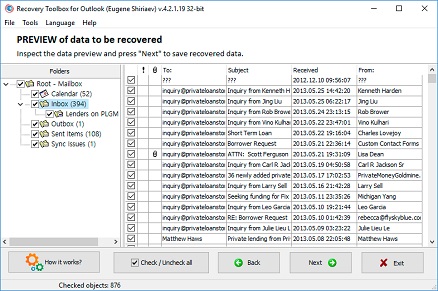
For a local conversion, you can use Recovery Toolbox for Outlook. Select the source PST file on the first screen, confirm that you want the program to recover it, and then select the required folders and messages on the preview screen after the scan finishes. Next, choose a destination folder, select EML as the output format, and start the export. The program will create a separate EML file for each email and rebuild the selected mail folder structure.
After that, create a folder under Local Folders in Thunderbird and import the prepared EML files. For a bulk import that includes subfolders, you can use the ImportExportTools NG add-on. Mozilla also documents the process for importing EML messages into Thunderbird's local folders.
Question:
I have Microsoft Outlook 2021 installed on a Windows 11 PC, but I want to switch to eM Client 10. Outlook has an old PST file attached with correspondence for several companies and separate folders for contracts, invoices, tech support, and completed projects. Outlook's built-in export wizard offers other formats, but I need individual EML files that I can import into eM Client as a complete folder. Which PST to EML converter tool is suitable for this job, and how can I avoid saving several thousand messages one by one?
Answer:
If the PST file opens correctly and the mailbox is small, you can move the messages for free through a mail server: connect the same IMAP account in Outlook and eM Client, copy the emails into server folders, and wait for everything to sync. For a large archive, this approach can be a pain because of mailbox quotas and the time required to upload attachments.
A convenient option for converting PST data to EML is Recovery Toolbox for Outlook. First, select the PST file and let the program scan its contents. On the preview screen, check the folders you want to move, choose an output directory, and set EML as the destination format. When you start the conversion, the emails will be saved as separate files in matching subfolders.
In eM Client 10, open the import menu, choose the option to import from a folder containing EML files, select the directory created by Recovery Toolbox for Outlook, and enable subfolder import.
Question:
I still have a Microsoft Outlook 2016 archive from a Windows 10 computer. The PST file contains seven years of emails with contracts, quotes, acceptance certificates, and payment confirmations. Our legal team wants the correspondence uploaded to a corporate document management system that accepts individual EML files but does not support PST. We need to preserve the original message headers, dates, participant addresses, and attachments. What is the correct workflow for converting .PST to .eml before handing the archive over to that system?
Answer:
For a small number of messages, you could open the PST file in Outlook 2016 and manually forward the required emails to the document management system's intake address. The downside is that forwarding creates a new message and may not preserve the original structure or all technical headers in a form suitable for archiving.
A more practical approach is to export the original messages directly from the PST file with Recovery Toolbox for Outlook. Make a backup copy of the PST file, select that copy in the program, and confirm the recovery operation. After scanning, select only the folders related to contracts, payments, and counterparties. At the save stage, choose a separate destination directory, select EML, and start the conversion.
Before a bulk upload, test several resulting files in a sandbox or test area of the corporate archive. Confirm that the system correctly reads the subject, sender, recipients, date, message body, and attachments. Once the test passes, you can transfer the entire directory together with its preserved folder hierarchy.
Question:
I use Outlook for Microsoft 365 on Windows 11. A local PST file contains correspondence from a former technical support department, including customer tickets, agent replies, diagnostic reports, and attached log files. We now need to move this material into a corporate help desk platform that can ingest EML files and attach them to tickets. How do I convert a PST file to EML when there are tens of thousands of messages organised in folders named after customers?
Answer:
If the help desk can receive messages by email, an obvious quick fix is to forward individual threads to its import address. That works for a handful of tickets, but with tens of thousands of messages it becomes a massive manual job and may scramble the original conversation order.
For a batch conversion, open the PST file in Recovery Toolbox for Outlook. After the scan, the program will display the mail folder tree and the messages it found. Select only the technical support folders and leave out personal or irrelevant mail. Then choose a destination folder, select EML as the save format, and run the export.
It is useful to pre-sort the resulting files by customer, project, or year. Before uploading the entire archive, import a small batch of test EML files into the help desk and check how it handles dates, participants, HTML content, and attachments. If the platform enforces file-size limits, put oversized messages into a separate queue for review.
Question:
An old Windows 10 laptop still has an OST file from Outlook 2016 that used to connect to a corporate Exchange Server. After I left the company, the account was disabled, so Outlook no longer opens the mailbox or lets me export the correspondence. The file contains important messages from completed projects that I need to move into Mozilla Thunderbird for local viewing. Can I convert OST to EML when I no longer have access to the Exchange Server?
Answer:
First, ask your former employer whether you are authorised to extract and use this correspondence. An OST file may contain corporate or confidential information. If you have lawful permission, make a copy of the file and work only with that copy.
A simple conversion may be possible if the account can be restored temporarily. Outlook could then sync the mailbox again, after which you could move the messages through IMAP or use a standard export. Without an active account, Outlook usually cannot attach an arbitrary OST file as a regular archive.
Recovery Toolbox for Outlook can scan a local OST file without an active connection to the old Exchange Server. Select the OST file on the first screen, confirm the recovery operation, and select the detected mail folders on the preview screen. Then choose a destination directory and save the messages in EML format.
After the export, import the EML files into Thunderbird's local folders. Test a few messages first, especially emails with large attachments or unusual formatting.
Question:
Microsoft Outlook 2024 is installed on my Windows 11 work computer. The legal department has requested all correspondence with one counterparty during a specific period for an internal investigation. The messages are stored in an archived PST file and spread across Inbox, Sent Items, and several project folders. The attorneys need individual EML files that they can open in their document review system and match to contracts. How can I export PST to EML without dumping the entire mailbox archive?
Answer:
If there are only a few messages, you can search Outlook by the counterparty's address and a date range, and then provide the results manually. However, do not simply forward the emails when the reviewers need the original technical headers and source attachments.
For a selective export, open the PST file in Recovery Toolbox for Outlook and wait for the scan to complete. On the preview screen, navigate to the relevant mail folders and select only the messages associated with the counterparty under review. If the built-in selection is not granular enough, export a limited set of folders and then sort the EML files by address, date, or keyword using the legal team's review platform.
Choose a separate case directory, select EML as the output format, and start saving. Do not edit the exported files afterwards. For a legally significant workflow, it is also advisable to retain the source PST file, the program report, and file checksums when required by the company's internal procedures.
Question:
I have a roughly 30 GB PST file from Microsoft Outlook 2021 on Windows 11. It needs to be prepared for upload to a corporate eDiscovery platform where the emails will be indexed, classified, and reviewed by address, date, and keyword. The platform accepts individual EML files but cannot read the original PST file. How should I run the PST to EML conversion, preserve the folder structure, and avoid losing messages with attachments?
Answer:
First, create a read-only or otherwise protected backup of the original PST file and record its size and the date you received it. For eDiscovery, it is important to keep the working copy separate from the original. If your company uses Microsoft 365 legal search features and the source messages are still on the server, a built-in corporate export may be available. However, those tools may not have access to a standalone local PST file.
To process a local file, use a 64-bit Windows environment and make sure the drive has enough free space. Select the PST file in Recovery Toolbox for Outlook, confirm the recovery mode, and wait for the folder tree to be built. Select the required sections, choose a new empty output directory, and save the messages as EML files.
After conversion, compare the number of exported messages with the program's scan results. Spot-check emails from different folders, including messages with HTML markup and large attachments. Then deliver the directory to the eDiscovery platform together with a note describing the source and the procedure used.
Question:
I work in Microsoft Outlook 2019 on Windows 10. After completing a construction project, I need to store all related correspondence next to the drawings, contracts, invoices, and reports in a normal project folder. The messages are currently inside an Outlook PST file, so employees who do not have Outlook cannot open them. I need one file per message with the subject, dates, participants, and attachments intact. I am looking for a straightforward guide on how to convert Outlook email to EML format for a long-term file-based archive.
Answer:
For a few messages, you can create PDF copies or save the attachments manually, but PDF is not a replacement for EML. It may omit the original technical headers, and the attachments must be stored separately. Another simple option is to copy the correspondence to an IMAP folder and open it in another mail client, but that does not create a self-contained project archive on disk.
A much easier approach is to select the PST file in Recovery Toolbox for Outlook, confirm recovery mode, and locate the project's folder on the preview screen. Select the required messages, choose the project folder as the output location, and set EML as the destination format.
It is better to save the result in a dedicated directory such as Project_Name\Correspondence\EML instead of mixing EML files with documents that are still being edited. After conversion, open several messages and attachments to verify them. You can also create an index file that records the project name, correspondence period, source PST file, and export date.
Question:
A sales department PST file is stored in Microsoft Outlook 2016 on a Windows 10 computer. It contains prospect emails, quotes, price approvals, and order confirmations. Our new CRM can attach EML files to customer records but cannot import PST files. I need to extract individual messages and then sort them by customer email address. Which .PST to .eml converter is a good fit for this workflow?
Answer:
If the CRM is connected to an active corporate mailbox, one simple option is to move the old messages from Outlook into server folders and then sync or forward them into the CRM. For an archived PST file, however, this method is clunky and may create duplicates or extra system records.
Recovery Toolbox for Outlook lets you open the PST file as the source and select specific sales folders. After the scan, check the required messages, choose an output directory, and save them in EML format. Each email becomes a separate file, which makes downstream automation easier because the CRM or an import script can classify messages by From, To, Cc, date, or customer domain.
Before a bulk upload, define the rules for matching messages to customers. A single EML file may involve several addresses or companies, so automatic linking should be backed up by a review queue for ambiguous cases. Also verify that the CRM preserves attachments and does not overwrite the original message date.
Question:
I used Outlook for Microsoft 365 on Windows 11 with a work Exchange account. After the company shut down, the server became unavailable, but an OST file containing a local copy of the mailbox remained on the computer. I now want to use eM Client 10 and keep the old correspondence in local folders. Outlook will not open the OST file as a regular data file. Which OST-to-EML converter can extract the messages and prepare them for import into eM Client?
Answer:
If the Exchange Server can still be restored, first try reconnecting Outlook to the account and running a normal sync. You could then move the messages through IMAP or create a standard PST file. This is the most obvious route, but it is not available when the Exchange account has been permanently deleted.
For a local conversion, use Recovery Toolbox for Outlook. Make a copy of the OST file, select it in the program, and confirm recovery mode. After the scan, review the folders and messages that were found, exclude unnecessary system folders, and choose EML as the output format.
In eM Client 10, open the option to import from a folder of EML files, choose the root export directory, and enable subfolder processing. This lets you bring over both the individual messages and the logical structure of the archive. eM Client officially supports importing EML files from a selected directory together with its subfolders.
Question:
Microsoft Outlook 2024 is installed on my Windows 11 computer, but I want to use The Bat! for Windows going forward. Outlook has a large PST file attached with personal folders, yearly archives, and correspondence for several projects. The Bat! cannot access the PST file directly, so I need a PST eml converter that creates separate message files instead of merging everything into one giant archive. What is the best way to organise the migration?
Answer:
If both applications can connect to the same IMAP mailbox at the same time, the simplest method is to copy folders from the PST file into that mailbox through Outlook and then sync them in The Bat!. This approach does not require intermediate files, but it depends on server storage limits and connection speed.
For a local migration, use Recovery Toolbox for Outlook. Select the PST file on the program's first screen, confirm Recovery mode, and wait for the folder tree to appear. Select the required years and projects, choose an empty directory for the EML files and folders, set EML as the output format, and start the conversion.
Next, import the EML files with The Bat! or use its supported mechanism for moving messages into selected folders. Before running the full batch, test a folder containing a few dozen emails. Pay special attention to subject encoding, HTML content, international characters, and attachment file names.
Question:
I have a PST archive in Outlook 2019 on Windows 10 containing supplier emails, invoices, acceptance documents, and payment confirmations. Our accounting team uses an electronic document management system where EML files can be attached as proof that a document was received. The staff keep using the shorthand PST eml, but I do not understand whether I can rename the PST extension to EML or whether every email must be fully converted.
Answer:
PST and EML are different formats. A PST file is an Outlook container that may hold thousands of messages, folders, and other items. An EML file usually contains one individual email. Renaming a .PST file to .eml does not change its internal structure and will not allow the document management system to read the correspondence.
For a few messages, you can open the PST file in Outlook and forward the required documents to the accounting team's intake address. However, forwarding creates a new message, so it is not always suitable when the original date and source headers must be preserved.
Recovery Toolbox for Outlook scans the PST file, displays its folders, and lets you select emails related to invoices and payments. After you choose a destination directory and EML as the output format, the program saves every email separately. Accounting can then attach the relevant EML file to the corresponding invoice, payment, or supplier record.
Question:
Microsoft Outlook 2021 is installed on a Windows 11 computer. I have several PST files containing technical correspondence from developers, system administrators, and support staff. We are building an internal knowledge base and want to index the emails with a local search engine that can extract text and attachments from EML files but does not understand PST. What is the best way to convert a PST file to an EML file format so the resulting messages can be searched automatically by address, date, subject, and keyword?
Answer:
If the original messages are still on an active mail server, you can use server-side search or an export provided by administrative tools. For old local PST files, however, it is usually easier to break the container into a set of individual files first.
Open each PST file in Recovery Toolbox for Outlook one at a time. After scanning, select the folders containing technical correspondence, choose a separate output directory for each source PST file, and save the messages in EML format. Do not dump multiple archives into one undivided folder; otherwise, it becomes harder to trace a message back to its source and manage duplicates.
After conversion, configure the indexer to process the .eml extension and extract the From, To, Cc, Subject, and Date fields. A separate indexing module better handles attachments. Before indexing the entire dataset, test emails with different encodings, HTML bodies, embedded images, and compressed attachments.
Question:
I use Outlook for Microsoft 365 on Windows 11, but I am moving to a Mac and plan to work in the current version of Apple Mail on macOS. My old messages are in a local PST file and are no longer synchronised with the server. I want to convert Outlook to EML, copy the resulting messages to the Mac, and retain the original attachments. Can I import an entire folder of EML files directly into Apple Mail?
Answer:
For an active account, the simplest approach is to add it to Apple Mail and wait for a server sync. However, that will not transfer messages that exist only inside a local PST file.
You can use Recovery Toolbox for Outlook on Windows to extract the messages. Select the PST file, confirm recovery, choose the required folders, specify a destination directory, and save the emails as EML files. Then copy the resulting folder structure to the Mac.
Keep in mind that Apple Mail's built-in bulk import is mainly designed for MBOX mailboxes, not an arbitrary tree of EML files. Individual EML files can be opened for viewing and further processing, but importing the entire archive in one shot may require an additional EML-to-MBOX conversion or another compatible workflow.
Question:
After a disk failure, Microsoft Outlook 2016 on a Windows 10 computer stopped opening an archived PST file and now reports a data file error. The archive contains correspondence required for an internal audit, including price approvals, payment authorisations, supplier emails, and management messages. The auditors use a specialised email review system that accepts EML files. How can I convert PST to EML when Outlook cannot attach or open the source file correctly?
Answer:
Stop working with the damaged original and make a byte-for-byte image or a regular backup copy on another drive. As a free first step, you can try the Inbox Repair Tool, also known as ScanPST, which is included with classic Outlook. After repairing a copy of the PST file, check whether Outlook can open it. Be aware that the repair process may remove damaged items or change the file's internal structure.
If ScanPST does not help, or if you need to preview the recovered messages first, open the PST copy in Recovery Toolbox for Outlook. The program will scan the file and display available folders and emails on the preview screen. Select the material relevant to the audit, choose a separate output directory, and save the messages as EML files.
After export, compare the number of detected and saved items, check messages from different time periods, and leave the original PST untouched. For a formal audit workflow, also retain information about the file source, processing date, program version used, and the results obtained.

Victor G. Bobrov, Senior Software Engineer.
MCSD, MCDBA
Microsoft Outlook expert in storing and displaying data from PST and OST files, specialist in converting and recovering data from PST/OST files with over 20 years of experience.
This page is maintained by Recovery Toolbox / File Master LLC and is connected to the author profile, company profile, legal pages and support resources so users and search engines can verify who is responsible for the PST Viewer content.

Victor Bobrov is listed as the author and reviewer of this Outlook Repair guide and is connected in structured data as the creator of the Recovery Toolbox for Outlook Repair Tool.
Recovery Toolbox is connected on this page to its company profile and legal entity:
The Most Reliable Way to Convert an Outlook PST File to EML Files
Download for Windows Recovery Toolbox for OutlookPrivate offline conversion
Your data stays on your PC.
Preview converted emails
Use the free PST Viewer to check emails before conversion.
Works with Outlook 97-2024
And Outlook for Microsoft 365.
Engineered by data conversion expert Victor G. Bobrov
Customer's reviews
By clicking Download or Upload file, you agree to the Terms of Service and EULA.
Select a conversion method
Private offline conversion
Your data stays on your PC.
Preview converted emails
Use the free PST Viewer to check emails before saving.
Works with Outlook 97-2024
And Outlook for Microsoft 365.
Progress
Please wait while the file is repaired
Progress of file upload:
The program has no restrictions on the number and size of files