

Eddie
United Kingdom
Oct 4, 2025
5 out of 5 stars
I JUST LOVE THIS PC TOOL I USE IT ALL OF THE TIME. THANKS ED.
Recovery Toolbox for Outlook helps to repair damaged Microsoft Outlook PST files
If Outlook does not open the PST file, use Recovery Toolbox for Outlook or an online PST file repair service. The tool or online service can repair emails, appointments, attachments, contacts, tasks, notes, calendars, journals, and other items from corrupt PST or OST Microsoft Outlook files. Both the desktop tool and the online service allow you to scan corrupted Outlook files of any size or version to preview recoverable data for free. Error 0x80040116 can be fixed in a few steps described below.
Recovery Toolbox for Outlook is a professional Outlook repair software application for Windows PCs and laptops designed to repair corrupted PST and OST email databases. Unlike the standard Microsoft Outlook Inbox Repair Tool (ScanPST.exe), which freezes or crashes on databases larger than 20GB, our PST recovery tool reliably restores massive 100GB+ Outlook files without hanging and includes a built-in Free PST Viewer Mode to preview your emails before recovery.
Step-by-step instructions for repairing the data from corrupted Outlook Personal Storage Table (PST) files. These instructions apply to all sizes and versions of Microsoft Outlook data files:
To achieve the highest possible recovery accuracy, Recovery Toolbox for Outlook performs an in-depth examination of the PST file’s internal architecture. The software examines the Node Database (NDB) layer, including the file header, allocation information, block structures, Block B-Tree (BBT), and Node B-Tree (NBT), along with MAPI property tables. As defined in Microsoft’s MS-PST specification, the BBT maps Block IDs (BIDs) to block locations, while the NBT links Node IDs (NIDs) to their data and subnode blocks. Each NID contains a nidType field identifying the node’s type; for example, NID_TYPE_NORMAL_FOLDER identifies the Property Context (PC) of a normal Folder Object. During this process, the software validates data-block integrity, identifies duplicate records, and excludes obsolete copies.
Verified blocks are reconstructed into logical nodes so the recovery engine can work with the latest valid revision of each item. The program then rebuilds Outlook objects such as email messages, attachments, subject fields, calendar entries, contacts, and folders and checks their consistency before export. Older or redundant versions of recovered objects are removed automatically.
At every recovery stage, the application decrypts protected data and applies decompression when required. This approach enables Recovery Toolbox for Outlook to extract usable information even from PST files that are partially encrypted, structurally damaged, compressed, or contain mixed data formats.

The software scans your local Outlook data files to analyze their integrity. Consider using the application if you encounter the following issues:
If you don't have a Windows computer with the desktop version of Outlook installed, then you can repair a corrupt PST file by using a special online service here.

If all the above steps failed, then use the Outlook Inbox repair tool to repair the PST file and replace the corrupted PST file in the Mail profile of Windows. It is mandatory to try all the free steps before using the Recovery Toolbox for Outlook.
The Recovery Toolbox for Outlook technical support team can be a last resort in difficult cases. The development team can individually analyze the corrupt file and recover the maximum amount of data from the corrupt Outlook file. Technical support for the first year is included in the program price. This personalized approach has improved the quality of data recovery with the program and online service; personalized solutions are entered into the program and become available to everyone.

The Recovery Toolbox for Outlook solves problems with corrupted Outlook storage files.
The Microsoft Outlook Inbox Repair Tool includes an online version, found here. The Outlook Online Repair Service allows you to repair corrupted PST/OST files on any device (desktop, tablet, phone) with any OS (Windows, Android, macOS, iOS and so on). The PST Online Repair Service does not require Microsoft Outlook to be installed and does not need to have any third-party software installed on your device.
Features of the Outlook File Repair Tool
Recovery Toolbox for Outlook is designed to repair and recover data from damaged Microsoft Outlook PST files. It supports legacy ANSI PST files created by Outlook 97 through Outlook XP, as well as modern Unicode PST files used by Microsoft Outlook 2003 and later versions. The software can also recover PST files created by Outlook for Microsoft 365, making it suitable for both older archives and current Outlook mailbox data.
The tool can process corrupted, password-protected, and encrypted Outlook PST files. It analyzes the internal mailbox structure and attempts to restore accessible data even when Outlook cannot open the file normally or when the original PST database contains damaged records, broken folder references, or unreadable items.
Recovery Toolbox for Outlook can recover email messages, contacts, appointments, calendar entries, tasks, notes, journal records, attachments, and other Outlook objects stored in a damaged Personal Store Folder. It also restores items that contain embedded objects or attached files, such as documents, images, attached email messages, contact cards, and other mailbox content.
Recovered information can be saved in several commonly used output formats, depending on the required workflow. The software can create a new PST file for importing into Microsoft Outlook, or export individual items as MSG, EML, VCF, or TXT files. For example, PST to EML conversion can be useful when messages need to be opened in another mail client, archived independently, or processed by email migration software.
The application can also work with large Outlook data files that exceed 2 GB. This can be important for older ANSI PST databases, which may become unstable or inaccessible after reaching the historical size limit. Such problems may be associated with Outlook errors including 0x80040119, file-access failures, mailbox corruption, or an inability to open folders correctly.
Recovery Toolbox for Outlook includes an OST Viewer mode that allows users to inspect the contents of Offline Outlook Data Files (.ost). It can also convert OST data to PST format, helping users preserve locally cached Exchange Server or Microsoft 365 mailbox data when the original Outlook profile, Exchange Server connection, or account access is no longer available.
The program can be used as an Outlook email recovery tool when a PST file cannot be opened, when mailbox folders are missing, or when messages and attachments are inaccessible through Microsoft Outlook. It can also help address common Outlook data-file problems, including the 0x8004010F error, which is typically displayed as Outlook data file cannot be accessed.
Recovery Toolbox for Outlook supports PST repair scenarios involving Outlook 2016, Outlook 2019, Outlook 2021, Outlook 2024, and Outlook for Microsoft 365. It can provide an alternative recovery method when Microsoft Inbox Repair Tool (ScanPST.exe) cannot repair a file, produces an incomplete result, or hangs during the repair process. In these cases, the software can scan the original damaged PST file and extract recoverable mailbox data into a new usable file structure.


The MS Outlook repair software fixes many Personal Store Folder errors:
If Microsoft Outlook cannot open your Personal Store Table (*PST file), download, install and launch the Recovery Toolbox for Outlook. The MS Outlook PST repair tool will read and show the contents of the corrupted PST file. You can use Recovery Toolbox for Outlook in DEMO mode as a PST viewer. Our program doesn't use MS Outlook to repair Outlook data files.
Recovery Toolbox for Outlook can repair Outlook files of all versions. How to repair a PST file in Outlook in few clicks. Recovery Toolbox for Outlook can also fix 2GB error PST files. Later, you can divide a resulting file into several PST files, each being of a predetermined size.
Requirements:
Notes and Limitations:
- This software does not export contact groups.
- Microsoft Outlook Inbox repair tool does not have a limit on the size of the file to be repaired.
- Microsoft Outlook Inbox repair tool does not have a limit on the quantity of files to be repaired.
- The online repair service works for customers of Macs, phones, iOS, Android and other non-Windows devices.
- The desktop version of Outlook must be installed on a PC to save the repaired data into PST file(s).
- Recovery Toolbox for Outlook can use any version of PST/OST files.

Microsoft Outlook errors related to a Personal Storage Table (.pst) file can occur for many different reasons. In some cases, the Outlook mail profile itself becomes corrupted; in others, the PST file, local Windows environment, storage device, or synchronization process is affected. As a result, Outlook may be unable to open a mailbox, display folders, send or receive messages, or access email items stored in the data file.
A PST file can become damaged after an incorrect startup from sleep or hibernation mode. For example, if the computer does not resume correctly and Outlook is already running, the application may lose access to open mailbox data or fail to finish writing changes to the PST file. Improper shutdowns can create similar problems, especially when Windows is restarted, powered off, or forced to close while Outlook is saving messages, updating folders, or synchronizing account data.
Power failures can also interrupt write operations and leave the Outlook data file in an inconsistent state. This may happen during mailbox synchronization, indexing, archiving, or message delivery. Windows malfunctions, unexpected application crashes, and file-system errors can have the same effect because Outlook depends on the operating system and storage subsystem to maintain the internal structure of the PST file correctly.
In some situations, Outlook data may be affected by incorrect encryption or an interrupted operation involving a protected PST file. Password-protected or encrypted Outlook data files can become inaccessible if the encryption process does not complete correctly, if the file is copied while still in use, or if its internal database structure is already damaged.
Virus infections and other malicious software can damage Outlook files directly or interfere with Windows services, storage access, and email-related components. Antivirus programs can also cause problems in certain cases. For example, real-time scanning may lock a PST file while Outlook is using it, interrupt an operation, quarantine a related file, or interfere with mailbox synchronization.
Hardware problems are another common cause of Outlook data-file errors. A failing hard drive, SSD, USB storage device, or network disk may return read or write errors while Outlook is accessing the PST file. Disk-sector damage, unstable connections, insufficient free space, and file-system corruption can prevent Outlook from opening the file or may cause messages, folders, and attachments to become unreadable.
Synchronization issues can also affect Outlook mailbox data. A poor internet connection may interrupt communication with Microsoft Exchange Server, Microsoft 365, or another mail server while Outlook is downloading, uploading, or updating email items. Incorrect synchronization with the mail server can create conflicts between local and server-side data, while problems with OneDrive, Dropbox, Google Drive, or other cloud storage services can occur when a PST file is synchronized, moved, or modified by multiple processes at the same time.
Finally, problems may occur when Microsoft Inbox Repair Tool (ScanPST.exe) cannot repair a damaged PST file correctly. The utility may report errors, stop unexpectedly, generate an incomplete repaired file, or fail to restore the required mailbox items. In more severe cases, the Microsoft Inbox Repair Tool — `ScanPST.exe` — may hang during the analysis or repair process and never complete the operation.
To prevent problems and errors caused by corrupted Outlook storage crashes, you need to:


Question:
Answer:
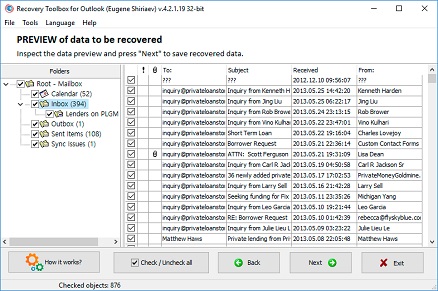
If Microsoft's ScanPST does not repair the email and contact storage in the PST file, you can use Recovery Toolbox for Outlook to evaluate the possibility of recovery. Step-by-step process for recovering emails from a damaged email storage file using the free demo version of Recovery Toolbox for Outlook:
After these simple 4 steps, you can continue working, even after poor ScanPST results that may have shocked you.
Question:
Answer:
For complex cases like this, you need to use the Recovery Toolbox for Outlook utility. The Recovery Toolbox for Outlook utility has an advanced algorithm based on specialized artificial intelligence that thoroughly analyzes and decomposes the data in the PST file.
Recovery Toolbox for Outlook can save all data to a simple unencrypted PST file, even if some of the data was previously encrypted.
Question:
Answer:
Recovery Toolbox for Outlook reads PST files even if part of the file is compacted and part of the file is not compacted. Recovery Toolbox for Outlook will read the file piece by piece and display all data on the preview page. Then you can save all data to an uncompressed PST file.
Question:
Answer:
The most likely cause of this error is the beginning of hard drive failure. To fix this problem, you should:
Question:
Answer:
Yes, there is a chance of recovery. The larger the PST file, the better the chances of recovering emails and contacts from the Outlook Personal Data Storage file. Run Recovery Toolbox for Outlook on a separate computer and select the PST file copied from the infected computer for repair. Recovery Toolbox for Outlook will spend a long time analyzing and assembling the data back into a new PST file. The larger the source PST file, the higher the chances of recovery after ransomware. The virus encrypts the beginning and end of the file and changes data blocks in the file. However, a special algorithm in the Recovery Toolbox for Outlook program collects single objects from data blocks, forming emails and contacts from them. Unfortunately, some data will be completely or partially lost, and the folder structure and nesting may be damaged. The most likely loss will be user settings and data in the PST file, because they are usually stored at the end of the file, and ransomware encrypts that part first.
Question:
Answer:
Most antivirus programs (McAfee, Windows Defender, and so on) block a file if they detect a virus in it. When you receive an email, possibly spam, with a virus or malicious content, and Outlook tries to save it to a PST file in the Inbox folder, McAfee or Windows Defender may block this file and wait for your action. To avoid this and continue receiving mail, you should:
Yes, the email with the virus will be stored in the PST file, but you should not click attachments in such suspicious spam emails and should not click links in emails from unknown sources.
Question:
Answer:
Recovery Toolbox for Outlook reliably reads and recovers PST files of 100 GB and more. To recover and optimize large Outlook Personal Storage files, you need to:
Each new PST file now has a smaller size and does not cause difficulties in Outlook. Each new PST file is now fully standalone and does not require other PST files nearby. The files are not linked to each other.
Question:
Answer:
In this situation, it is better not to run repeated repairs on the same PST file in ScanPST. Follow these steps:
Question:
Answer:
Yes, but first you need to copy the PST file from the network drive to the local disk of the computer. It is not recommended to recover the file directly from a network folder, because repeated connection drops may damage the data again. After copying, run Recovery Toolbox for Outlook, select the local copy of the PST file, wait for the analysis to finish, and save the recovered data to a new PST file. It is better to store the new file on a local disk, not in a network folder.
Question:
Answer:
First, do not write any new data to this USB drive. Copy the damaged PST file to the computer's internal drive if it is still readable. If copying fails with errors, first check the drive using standard Windows tools or use another computer. After obtaining a copy of the file, open it in Recovery Toolbox for Outlook. The program will try to read available data blocks and assemble emails, contacts, attachments, and calendar items into a new PST file.
Question:
Answer:
Error 0x80040116 usually indicates an access problem or damage to the Outlook data file. Close Microsoft Outlook and all programs that may be using the PST file. Then make a backup copy of the damaged file. After that, open the copy in Recovery Toolbox for Outlook, select Recovery Mode, and wait for the preview of the found data. If the emails are displayed in the folder tree, save them to a new PST file and connect it instead of the old damaged file.
Question:
Answer:
Yes, but first you need to stop OneDrive synchronization for this folder or copy the PST file to a regular local folder outside OneDrive. Outlook does not handle simultaneous PST file use and cloud synchronization well. After copying, run Recovery Toolbox for Outlook, select the damaged PST file, and save the recovered data to a new file. It is better not to place the new working PST file back into a synchronized folder.
Question:
Answer:
Not necessarily. Source PST and OST files often contain old versions of emails, deleted items, service blocks, and junk data that are no longer displayed to the user in Outlook. A new PST file usually contains only useful recovered data. Therefore, the recovered file may be several times smaller than the source file. It is better to check the result not by file size, but by the number of folders, emails, contacts, and calendar items in the preview and in the new PST file. This can be done conveniently on the preview page in Recovery Toolbox for Outlook.
Question:
Answer:
Yes, if the file is actually a PST or OST file but its header or internal structure is damaged. Copy the file to a safe location and open the copy in Recovery Toolbox for Outlook. Even if Outlook does not recognize the file as a valid storage file, the program can read separate data blocks and find emails, contacts, calendar items, and attachments. After analysis, save the found items to a new PST file.
Question:
Answer:
For some saving options, especially creating a new PST file, Microsoft Outlook may be required on the computer. If Outlook is not installed, you can use the online version of the service or try to save the recovered data to separate files such as MSG, EML, TXT. To fully create a new PST file, it is better to perform recovery on a Windows computer with Microsoft Outlook installed.
Question:
Answer:
You can try opening this PST file in Recovery Toolbox for Outlook, which does not ask for the password. The program supports working with password-protected PST files and can try to read the available data. After recovery, the data can be saved to a new PST file or to separate files.
Question:
Answer:
Open the new PST file in Outlook and expand it in the left panel. Then go to the Calendar section and enable the display of the calendar from the recovered PST file. It may appear separately from the main calendar of the account. If the calendar is visible as a separate folder, you can view it alongside the main calendar or manually move the required meetings.
Question:
Answer:
Contacts may be recovered to a separate Contacts folder inside the new PST file, but Outlook does not always automatically connect this folder as an address book. Open the recovered PST file, find the Contacts folder, and check its contents. If contacts are displayed in the folder but are not visible when composing an email, check the contact folder properties and Outlook address book settings.
Question:
Answer:
Yes. After analyzing the PST/OST file, Recovery Toolbox for Outlook shows a tree of found folders and objects. On the preview page, you can select only the folders or items you need to save. For example, you can save only Inbox, Sent Items, Contacts, or Calendar. This is convenient if the damaged file is very large and you only need specific data.
Question:
Answer:
You should not delete the old file immediately. First, save the recovered data to a new PST file, open it in Outlook, and check emails, contacts, calendar items, and attachments. Only after checking should you remove the old damaged PST file from the Outlook profile. It is better to keep the file itself for some time as a backup copy on a separate drive.
Question:
Answer:
This is not recommended. Do not save the result over the original damaged file. It is better to create a separate folder and specify a new name, for example recovered_outlook.pst. This protects the source file from being overwritten. If the recovery result is incomplete, you will still have the original for another attempt.
Question:
Answer:
Close Outlook and restart the computer. Then open Outlook and check the list of data files in Account Settings | Data Files. Remove old or missing PST file references from the profile if they are no longer needed. After that, add the new recovered PST file. If the old and new files have the same names, rename the recovered file so you do not confuse it with the damaged version.
Question:
Answer:
Not always. After connecting a new PST file, Outlook and Windows Search need to re-index the emails in the file. This may take time, especially if there are many emails. Check whether the emails are visible manually in the folders. If the emails open but search temporarily does not work, wait until indexing finishes. You can also rebuild the Windows Search index through indexing settings.
Question:
Answer:
First, you need to stop actively using that disk. If the disk is physically failing, each new read operation may make the situation worse. Try to carefully copy the PST file to another storage device. If the copy succeeds, recover the copy, not the original. If the file cannot be fully copied, you may first need to recover data from the disk, and only then analyze the PST file in Recovery Toolbox for Outlook.
Question:
Answer:
Yes, if the file can be read or copied. First, copy the PST file to another physical drive. If copying completes successfully, open the copy in Recovery Toolbox for Outlook. If the file copies with errors, first resolve the SSD data recovery problem. Recovery Toolbox for Outlook works with the PST/OST file itself, so it needs an accessible file, even if it is logically damaged.
Question:
Answer:
Old ANSI PST files had size limits and could become damaged when approaching 2 GB. Make a copy of the file and open it in Recovery Toolbox for Outlook. After analysis, save the data to a new PST file in a modern format if a newer Outlook version is installed on the computer (2007 and later). If an old version of Outlook is used, you can save the data to several smaller PST files.
Question:
Answer:
Yes. Recovery Toolbox for Outlook can save recovered items not only to a new PST file, but also to separate files. The MSG format is convenient if you need to open individual emails in Microsoft Outlook, send them to another user, or save them as an archive by folders. After previewing, select the required emails and specify saving to MSG.
Question:
Answer:
Yes. After analyzing the file, the program shows the found folders and object types. You can select only the Contacts folder and save contacts separately. Depending on the task, contacts can be saved to a new PST file or to VCF files. If you then need to import contacts into Outlook, open the new PST file or import the VCF files using standard Outlook tools.
Question:
Answer:
Duplicates may appear if the source PST/OST file contained old versions of emails, copies in different folders, results of previous imports, or partially deleted objects. First, check whether these are truly identical emails and not different versions of an email thread. Then you can use built-in Outlook features to sort by subject, date, and sender, and delete extra copies manually.
Question:
Answer:
Yes. If the OST file is available on disk, you can try to convert it to PST without connecting to the old domain or Exchange Server. Run Recovery Toolbox for Outlook, select the OST file, and use conversion mode. After saving the result, open the new PST file in Outlook. This will allow you to access emails, contacts, and calendar items that were saved in the local OST file.
Question:
Answer:
You can try if the local OST file remains on the computer and can be physically read. Outlook cannot open such an OST file directly because the account is no longer available. But Recovery Toolbox for Outlook can analyze the OST file and save the available data to PST. The sooner you start recovery and the fewer changes made to the file, the better the chance of recovering more data.
Question:
Answer:
For large or severely damaged PST/OST files, analysis may take a long time. You should not interrupt the process only because it is taking longer than usual. Check disk activity and CPU usage. If the program continues reading the file, it is better to wait for analysis to finish. If the process is truly frozen, make a copy of the source file, restart the computer, and try recovery again, preferably on a faster drive.
Question:
Answer:
Yes. The demo version is useful for preliminary evaluation of the result. It lets you open a damaged PST/OST file, run analysis, and see which emails, contacts, calendar items, and other objects were found. If the data you need is visible on the preview page, you can decide whether to save the result in the full version. This reduces the risk of purchase before checking a specific file.

Victor G. Bobrov, Chief Software Engineer and File Recovery Expert.
MCSD, MCDBA
Microsoft Outlook expert in storing and displaying data from PST and OST files, specialist in converting and recovering data from PST/OST files with over 20 years of experience.
Victor Bobrov is a senior data recovery specialist with 15+ years of experience in Microsoft Exchange Architecture and PST structure forensics.
Victor Bobrov is listed as the author and reviewer of this Outlook Repair guide and is connected in structured data as the creator of the Recovery Toolbox for Outlook Repair Tool.
Recovery Toolbox / File Master LLC maintains this page. The links below provide company details, legal information and support resources.
Recovery Toolbox is connected on this page to its company profile and legal entity:
The accurate recovery of a damaged Microsoft Outlook Personal Store Table (PST) file containing personal emails and contacts.
Download for Windows Recovery Toolbox for OutlookRecovery Toolbox for Outlook scans a damaged Microsoft Outlook PST file, displays recoverable emails, contacts and so on for free, and saves them to a new file.
Private Outlook Data Recovery
All Outlook data stays on your computer.
Preview repaired emails
Use the free Viewer to check repaired emails and contacts before saving.
Repairs corrupted Outlook 97-2024
And damaged Outlook for Microsoft 365.
Engineered by data recovery expert Victor G. Bobrov
Customer's reviews
By clicking Download or Upload file, you agree to the Terms of Service and EULA.
Choose your repair method
Private Outlook Data Recovery
All Outlook data stays on your computer.
Preview repaired Outlook emails
Use the free Viewer to check repaired emails and contacts before saving.
Repairs corrupted Outlook 97-2024
And damaged Outlook for Microsoft 365.
Progress
Please wait while the file is repaired
Progress of file upload:
The program has no restrictions on the number and size of files